
Group activities and Nearby
When you fly or hike with other pilots, Sidekik recognises it from the tracks. Your activities then show in the feed as a group activity, and the flight page lists who you flew with (Flown with) and who you met along the way (Nearby).
This guide explains when activities count as a group, what a group activity in the feed shows, how Nearby works and how to decide who sees you.
1. When activities count as a group
Nobody has to tag anyone. After every upload, Sidekik compares your track with the tracks of other pilots who were out at the same time and place. You’re a group when:
- you were close to each other for most of the shorter activity, and for a good part of the longer one,
- and that adds up to at least a few minutes.
In the air, pilots count as together across a wider distance, because a gaggle spreads out on every glide. On foot, or with one person hiking and one flying, you have to be much closer, so a hiker below pilots soaring the same mountain isn’t part of their group.
That second condition matters on busy days: someone who does a ten-minute top-to-bottom next to you at launch doesn’t end up on your six-hour XC.
- All activity types work, also mixed. If you hike up together and then fly different lines, you can still be a group.
- Your own flights are never grouped with each other.
- Manually entered flights without a track can’t be grouped.
- On a very busy day, a new flight joins the group whose members it matches best, so one ridge doesn’t turn into one giant group.
Older flights: Sidekik works out groups when a flight is uploaded. Of the flights from before Sidekik 5.2, only the last few days are covered, so most older flights show no groups.
2. Group activities in the feed
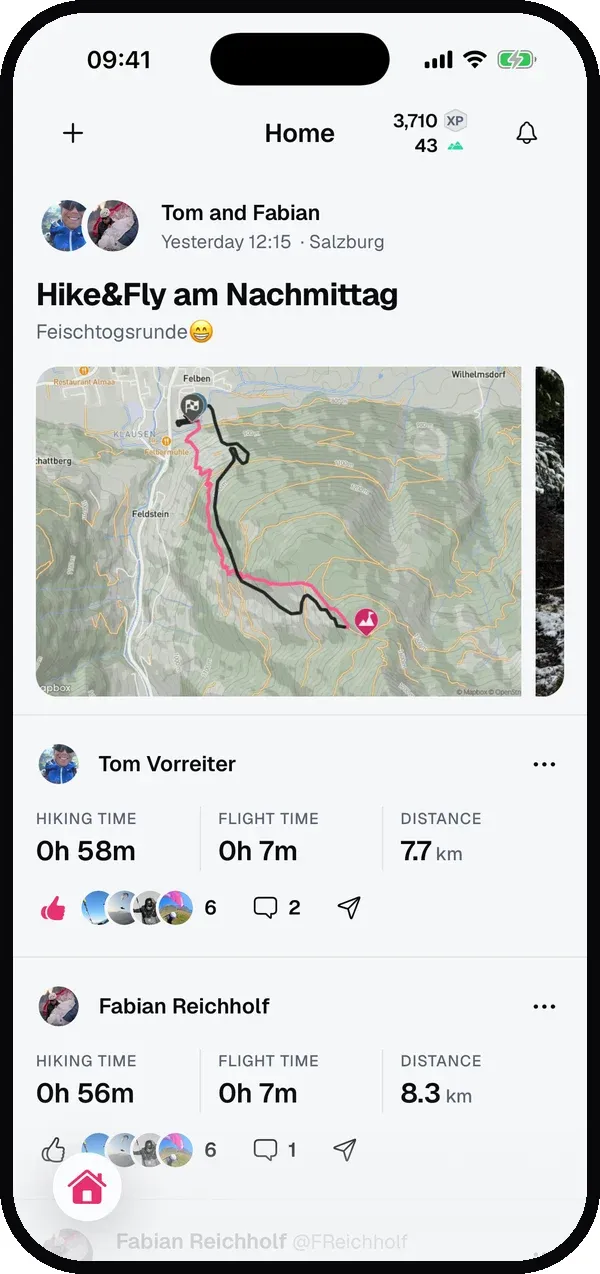
On Home, a group shows as one shared post:
- At the top: the pilots in the group that you follow, for example Tom and Fabian or Anna, Ben and 2 others, with time and place.
- Title, description and map image come from one flight: your own if you were part of it, otherwise from the newest flight in the group.
- Photos from all pilots in the group are shown together.
- One row per pilot with that flight’s stats, Flykes and comments. Flykes and comments stay with each flight: everyone keeps their own count.
- Tap a row to open that pilot’s flight. Your own row has the usual flight menu.
The post only lists people you follow (and you). If more pilots were in the group, it says something like 3 more in this group. If only one of the flights is left to show, you see the normal flight instead.
3. Flown with
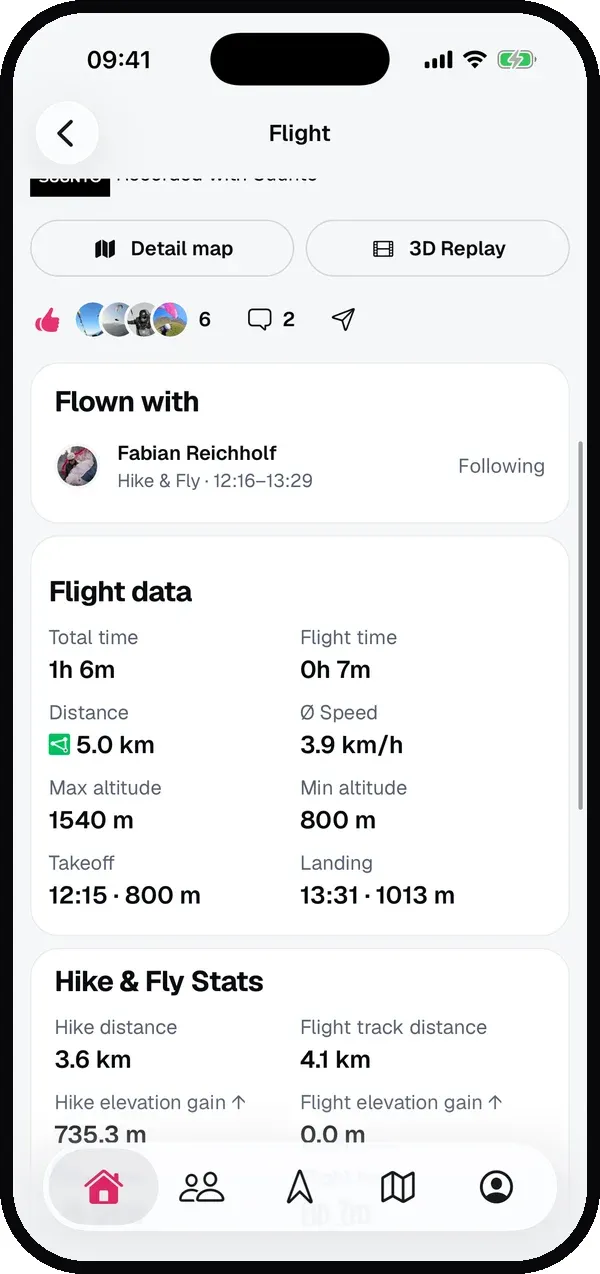
Open a flight from a group. Below the map, Flown with lists everyone in the group you’re allowed to see, with the activity type and time, for example Hike & Fly · 12:16–13:29.
- Tap a name to open that pilot’s flight.
- If you don’t follow someone yet, tap Follow. For private profiles this sends a follow request.
- As soon as you follow someone, they also appear in the group activity in the feed, including on past flights.
Leaving a group
If you weren’t really out together, open your own flight and tap Leave group under Flown with. After confirming, your flight is removed from the group and won’t be grouped again. Your flight then also has no Nearby list.
You can only remove your own flight. Nobody can remove someone else from a group.
4. Nearby
Nearby lists pilots who crossed paths with you without being in your group, for example someone you shared a thermal with for ten minutes or who passed you on a glide.
A pilot appears under Nearby when:
- you got within 1 km of each other while both flying, or within 200 m on the ground or while hiking,
- you were close for at least a minute, so a single GPS point doesn’t count,
- and they’re not already under Flown with.
Each row shows how long you were nearby, how close you got and when, for example 27 min nearby · as close as 10 m · 11:01. The pilots you spent the most time with are at the top. The list shows ten pilots at first, tap Show all for the rest. Here too, you can follow anyone directly.
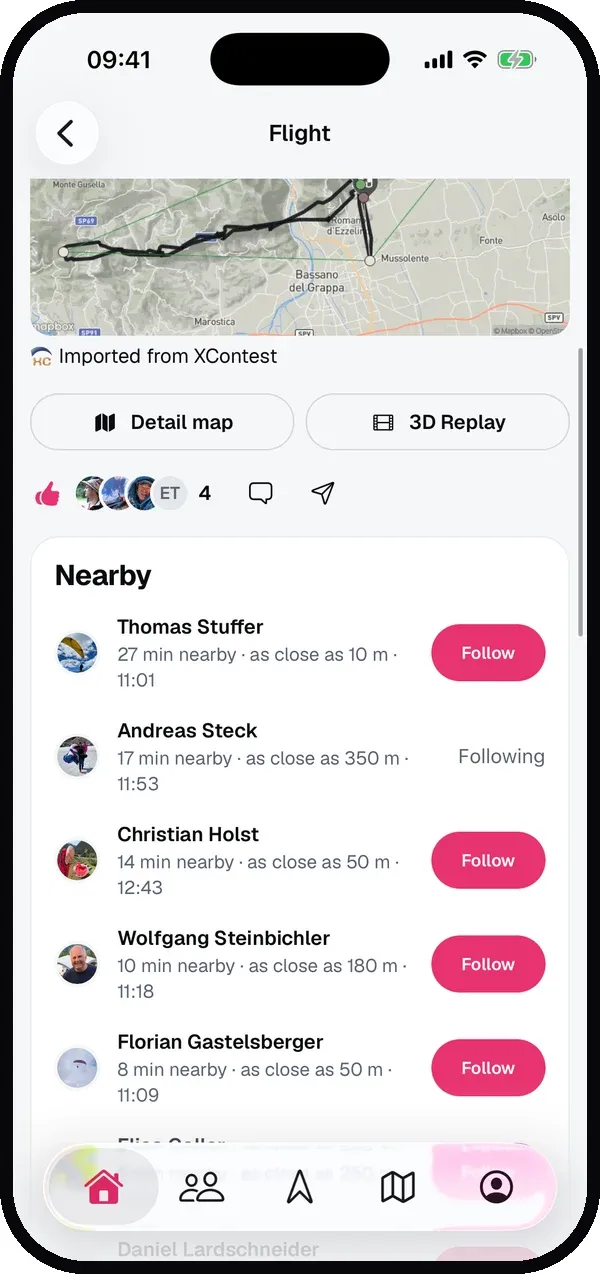
Nearby only appears on the flight page, never in the feed.
5. Who can see you
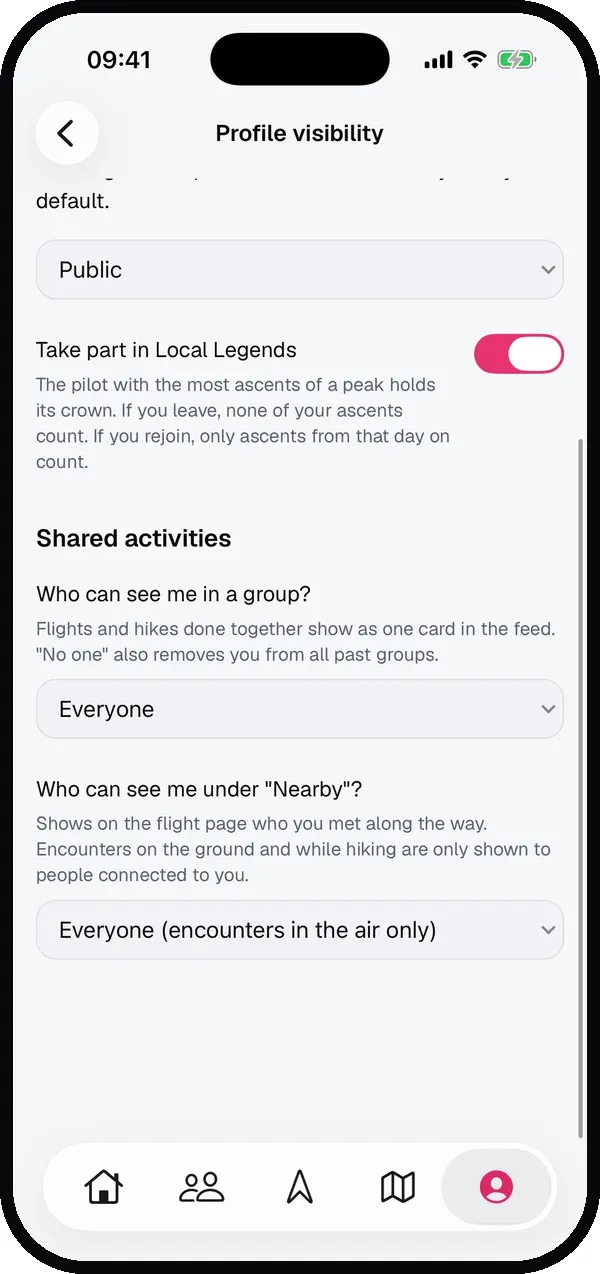
Go to Settings → Profile visibility. Under Shared activities there are two separate settings.
Who can see me in a group?
- Everyone (default): anyone who may see your flight sees you in the group.
- Only followers and people I follow: you’re grouped, but others see your flight on its own.
- No one (no groups): you’re never grouped. Switching to it also removes you from all past groups straight away.
Who can see me under “Nearby”?
- Everyone (encounters in the air only) (default): anyone who may see the flight sees you, but only for encounters while you were both flying.
- Only followers and people I follow: only people you’re connected to see you as nearby.
- No one: nobody sees you under Nearby, and you don’t see a Nearby list either. This also applies to all past flights straight away.
A few rules apply on every setting:
- Encounters on the ground and while hiking are only ever shown between people who follow each other. A hike can start at someone’s front door, while encounters in the air happen at launch sites.
- A stranger only sees you under Nearby when you’re both set to Everyone.
- A private profile always wins. People who don’t follow you never see you in a group or under Nearby.
- Leaving a group doesn’t change your settings, and the settings don’t affect your flight’s other visibility.
Tips
- Just flew with someone new? Open your flight, check Flown with and Nearby, and follow them right away.
- Want to know who was next to you in the thermal? Nearby shows the closest distance and the time, so you can match it to your flight.
- Prefer to fly under the radar? Set Nearby to Only followers and people I follow. Your friends still see you, strangers don’t.
Related guides
Still have questions? Write to us at [email protected].