
3D Replay: relive your flight and share it as a video
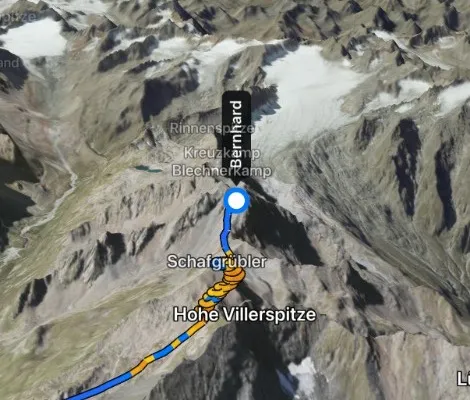
You know the feeling: you land after a great flight, and your head is still up there. The thermal next to the summit, the long glide across the valley, the moment you got above the ridge. Back home, all that’s left is a line on a map, and somehow it never quite shows what the flight felt like.
That’s why we built 3D Replay. Sidekik turns your track into a flight through the real mountains. The camera follows your glider, the terrain rises around you, and you can watch the whole flight again, as if you were flying behind yourself. And when you hit a moment you want to show your friends, you can record it as a short video right in the app.
Here’s how it works.
1. Open the replay
Open any flight in the app and tap 3D Replay, right next to Detail map.
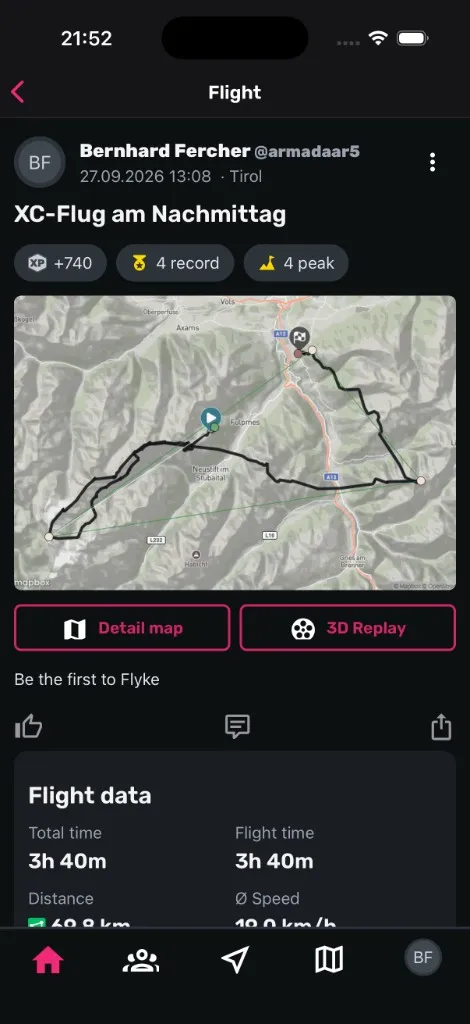
The replay works with every flight that has a GPS track, whether you tracked it with Sidekik or uploaded it as an IGC or GPX file. Flights you entered by hand don’t have a track, so the button doesn’t show up for them.
The map and the terrain are loaded when you open the replay, so you’ll need an internet connection. For longer flights it can take a few seconds the first time.
2. Watch your flight
The replay starts at takeoff with the camera right behind you. Your name marks your position, and the names of the summits around you are shown in the terrain, so you always know where you are.
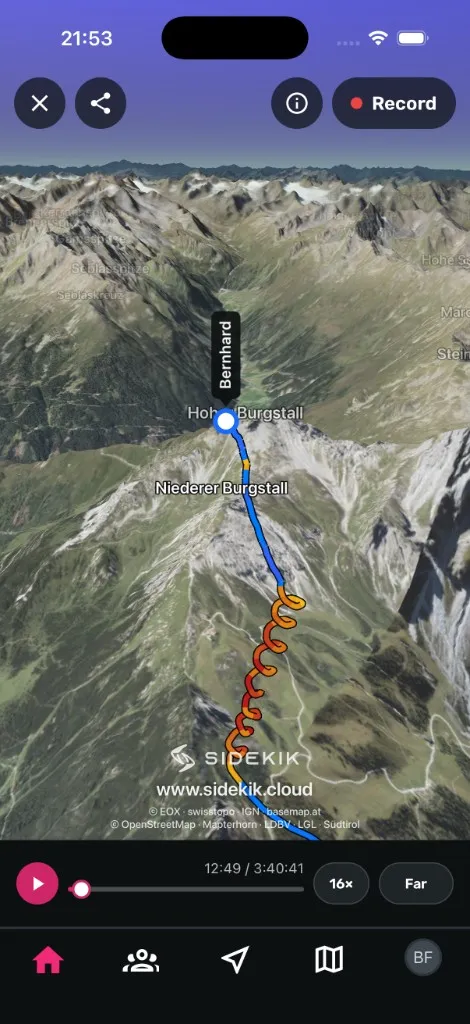
The track is coloured just like in live tracking: orange to dark red when you climb, blue to violet when you sink. You can spot every thermal at a glance. On a Hike&Fly the ascent gets its own colour, so the walk and the flight are easy to tell apart.
You control the replay with the bar at the bottom:
- Play / pause: tap the play button or simply tap the picture.
- Jump around: drag the timeline to any point in your flight. The time shown is your real flight time.
- Speed: tap to switch between 1×, 2×, 4×, 8× and 16×. It starts at 4×.
- Zoom: tap to switch between Close, Normal and Far. Close is great for thermals, Far shows the whole valley.
Tip: hold the speed or zoom button for a second and then slide your finger up or down to set any value in between.
So that long flights don’t get boring, Sidekik plays the time you spent circling in thermals a little faster. Longer glides and the interesting parts of the flight get more time. At the end, the camera pulls back and shows you the key numbers of your flight.
3. Look around
Want to see the ridge from the side, or take a closer look at your landing field? Just drag the picture with your finger. The camera lets go of your glider and you can look around freely. Tap Follow at the top and the camera flies back behind you.
4. Record your own video
This is where it gets fun. You can turn your favourite part of the flight into a short clip, ready for WhatsApp, your club group or Instagram.
Tap Record at the top right. The replay pauses and the settings open:
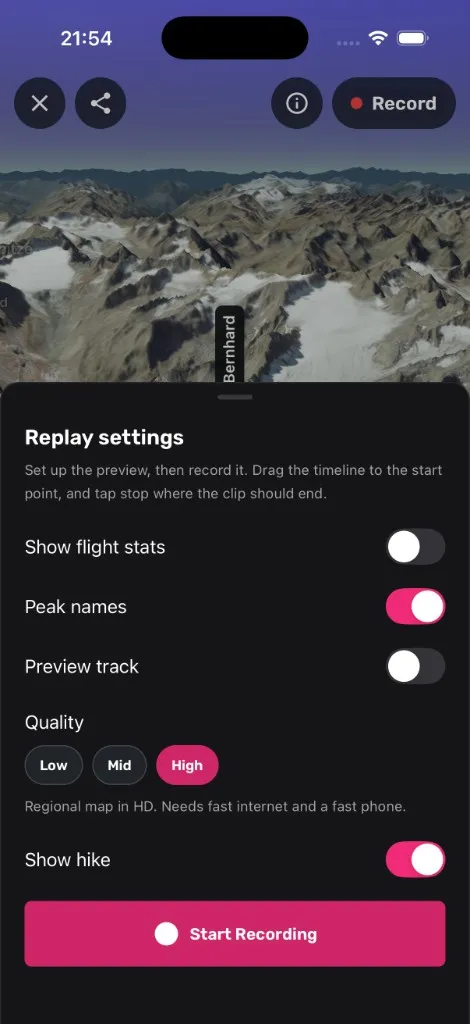
- Show flight stats: shows altitude, height above ground, speed and vario in the video.
- Peak names: shows the names of the summits.
- Preview track: also shows the part of the track that is still ahead of you, so viewers can see where the flight is heading.
- Quality: Low uses satellite imagery, Mid a detailed regional map, High the same map in HD. High looks best but needs a fast connection and a fast phone.
- Show hike: on a Hike&Fly you can decide whether the ascent is part of the video.
And here’s how you record:
- Drag the timeline to where your clip should start.
- Tap Start Recording. The replay starts playing and is recorded.
- Tap Stop when your clip should end.
The buttons on the screen are not part of the video, only the flight and the Sidekik logo. Keep the app open until the video is finished. Then you can save it to your photos or share it right away. The video is in portrait format, perfect for stories and reels.
If you post it on Instagram, we’d love it if you tag @sidekik_paragliding_app or invite us as a collaborator.
5. Share the replay
You don’t always have to make a video. With the share button at the top left, you send a link to the 3D replay of your flight, and your friends can fly along themselves and look around wherever they like.
Tips for a great clip
- Pick a highlight. A climb next to a summit, a valley crossing or the landing approach make better clips than the whole flight from start to finish.
- Set speed and zoom before you start. The video shows exactly what you see on screen. Close or Normal works well for thermals, Far for long glides.
- Turn on peak names. Your friends will see right away where you were flying.
- Use Wi-Fi for High quality. The HD map loads a lot of data.
Have fun reliving your flights
We hope you enjoy flying your best days all over again. If something doesn’t work the way you expect, or you have ideas for the replay, write to us at [email protected]. We read every message.
More step-by-step help: you can find all of them in the Sidekik guides.