
Getting started with Sidekik
New to Sidekik? This guide takes you from downloading the app to your first look around. You’ll create an account, set up your profile, follow a few pilots and get to know the five tabs.
It only takes a few minutes, and you can change almost everything later.
1. Create your account
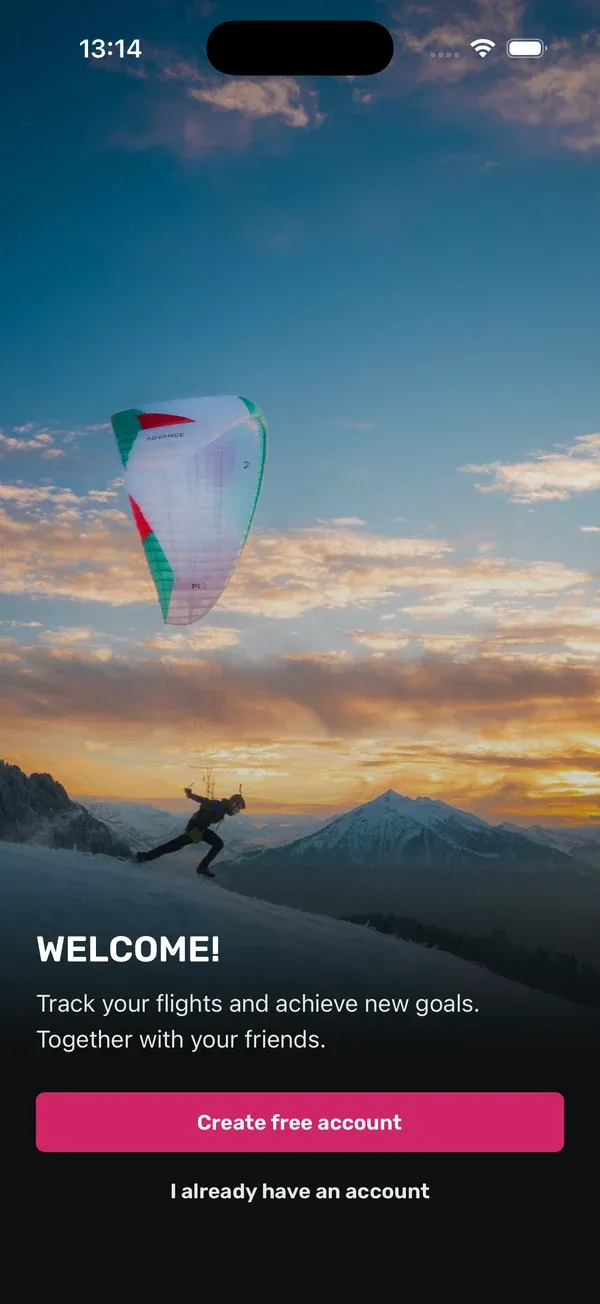
- Open the app and tap Create free account.
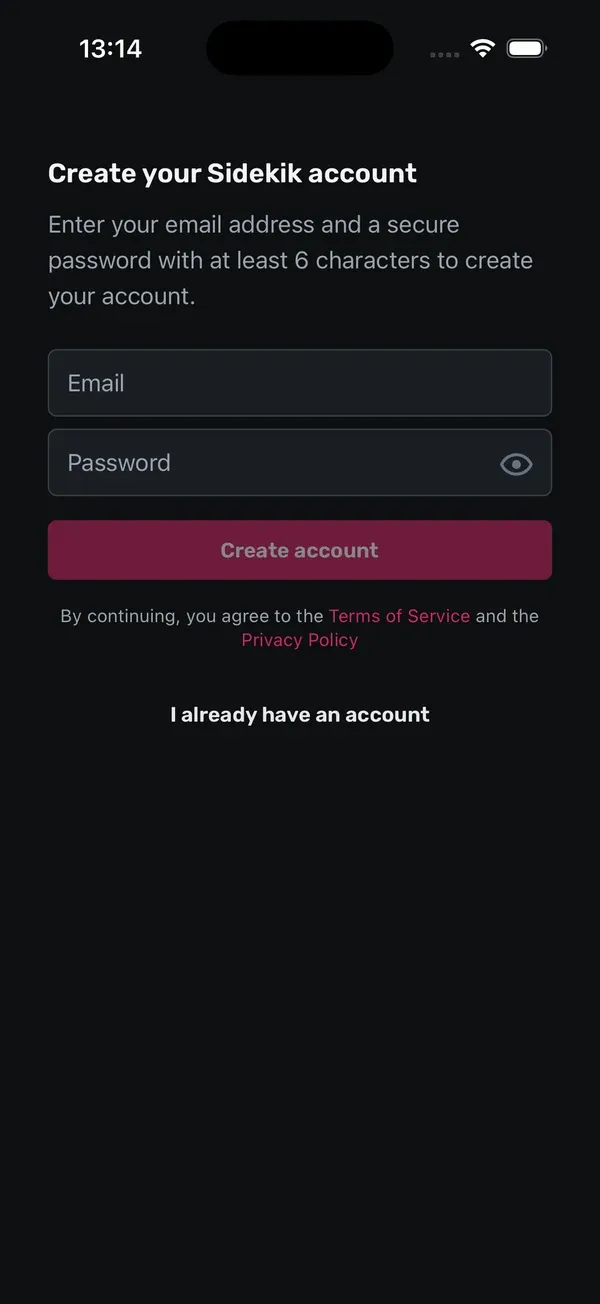
- Enter your email address and choose a password (at least 6 characters). Type it a second time to confirm it.
- Tap Create account. By continuing, you agree to the Terms of Service and the Privacy Policy.
Already have an account? Tap I already have an account on the welcome screen instead.
2. Complete your profile
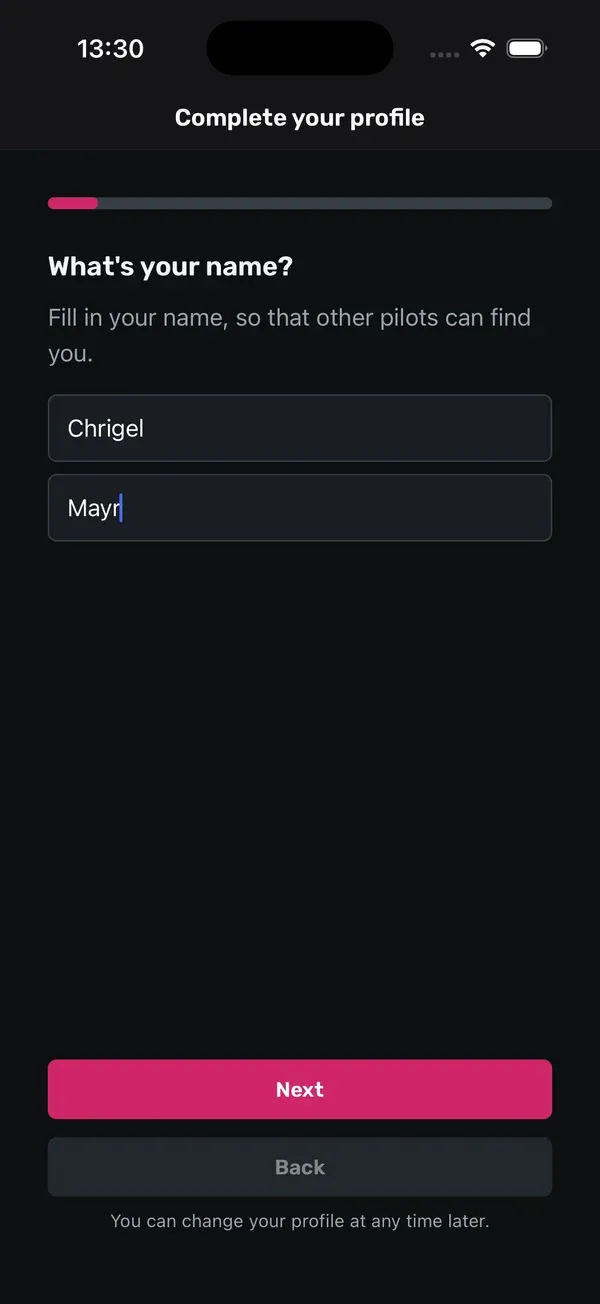
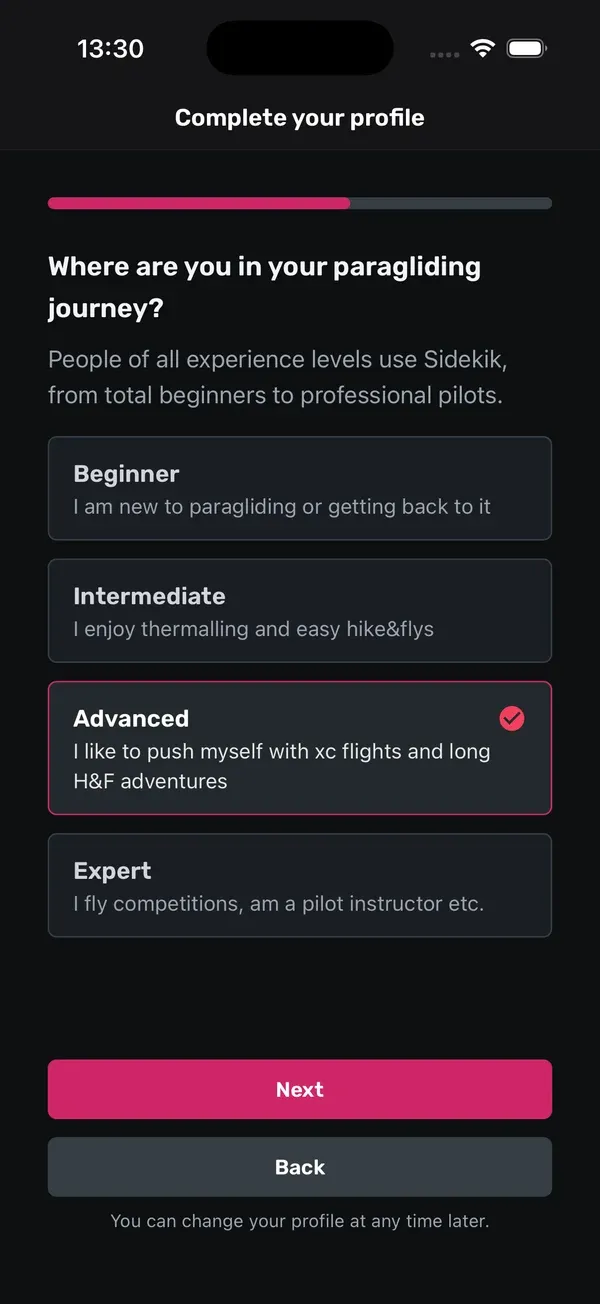
Next, Sidekik asks you a few short questions under Complete your profile. Tap Next to move on and Back to go back a step.
- What’s your name? Your first and last name, so other pilots can find you.
- Create a username. Sidekik suggests one, but you can pick your own. It needs 4 to 25 characters, must start with a letter and may only contain letters, numbers,
_and.. - How old are you? Pick your age range. Other users can’t see it.
- How do you identify? and Where are you from? These are used for leaderboards and rankings.
- Where are you in your paragliding journey? Choose Beginner, Intermediate, Advanced or Expert.
- Club. Pick your club, choose No club, or choose Other club to create a new one. More on clubs below.
- What do you plan to use Sidekik for? Choose as many as apply.
- How did you hear about us?
- Add a profile picture. This is optional. Everyone in the app will see your picture.
Tap Complete profile to finish.
3. Follow friends and other pilots
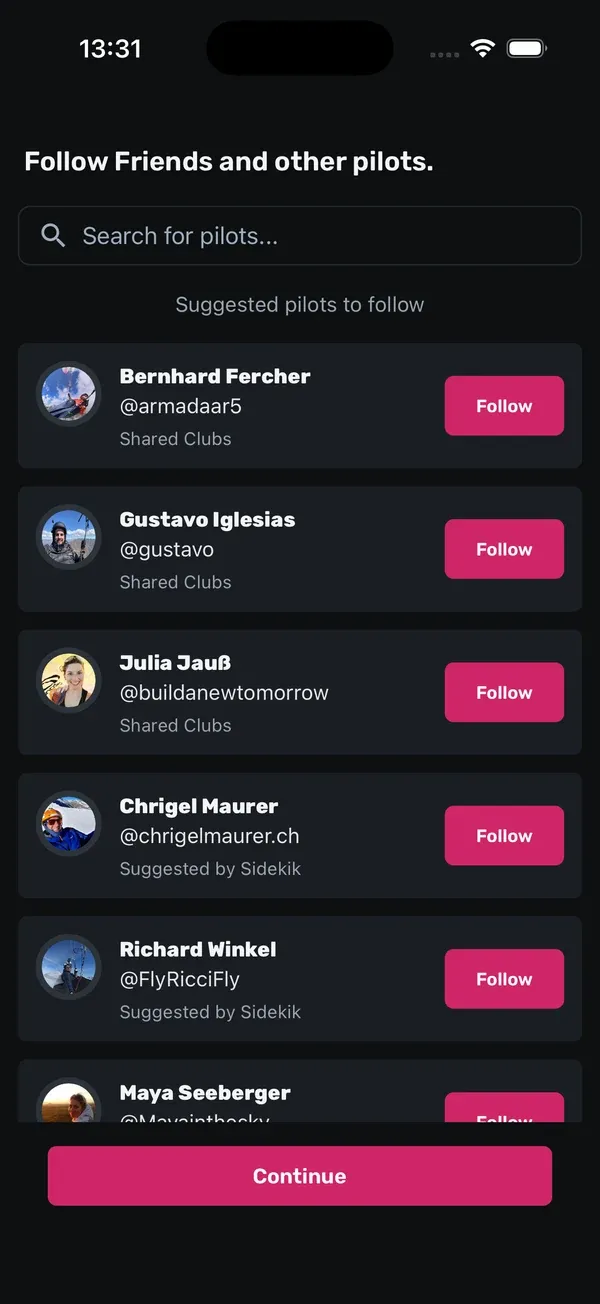
On the next screen, Follow Friends and other pilots., you’ll see Suggested pilots to follow. You can also search for pilots by name. Follow anyone you like. Their flights will then show up in your Home feed. Tap Continue when you’re done.
After that, Sidekik asks whether it may send you push notifications. Allow them if you want to hear about new likes and comments, or when your friends do something great. Then tap Let’s go! and you’re in.
You can find more pilots at any time:
- In the Community tab, tap the magnifier at the top left to open Find pilots.
- On Home, look out for Recommended pilots for you between the flights in your feed.
4. Add your glider
The setup doesn’t ask for your glider, so add it afterwards:
- Open the You tab and tap the cog at the top right to open Settings.
- Tap Manage your gliders, then Add glider.
- Choose the brand, enter the model (for example “Mentor 7 Light”) and tap Add glider.
When you upload or edit a flight, you can then pick it from the Glider list. You’ll find more about gliders in the profile and equipment guide.
5. Choose who can see your profile
Your profile is public unless you change it. To check, go to Settings > Profile visibility and choose Public or Private.
- Public: anyone can follow you, and your flights and photos are visible to everyone.
- Private: other pilots have to send you a follow request. Only people you accept see your full profile.
6. Join a club
If you picked a club during setup, Sidekik has already sent a request to join it. A club admin has to approve it.
You can look for clubs at any time: open Community, switch to Clubs and tap Discover clubs. Open a club and tap Join club. The clubs guide explains the rest.
7. The five tabs
The tab bar at the bottom shows icons only. From left to right:
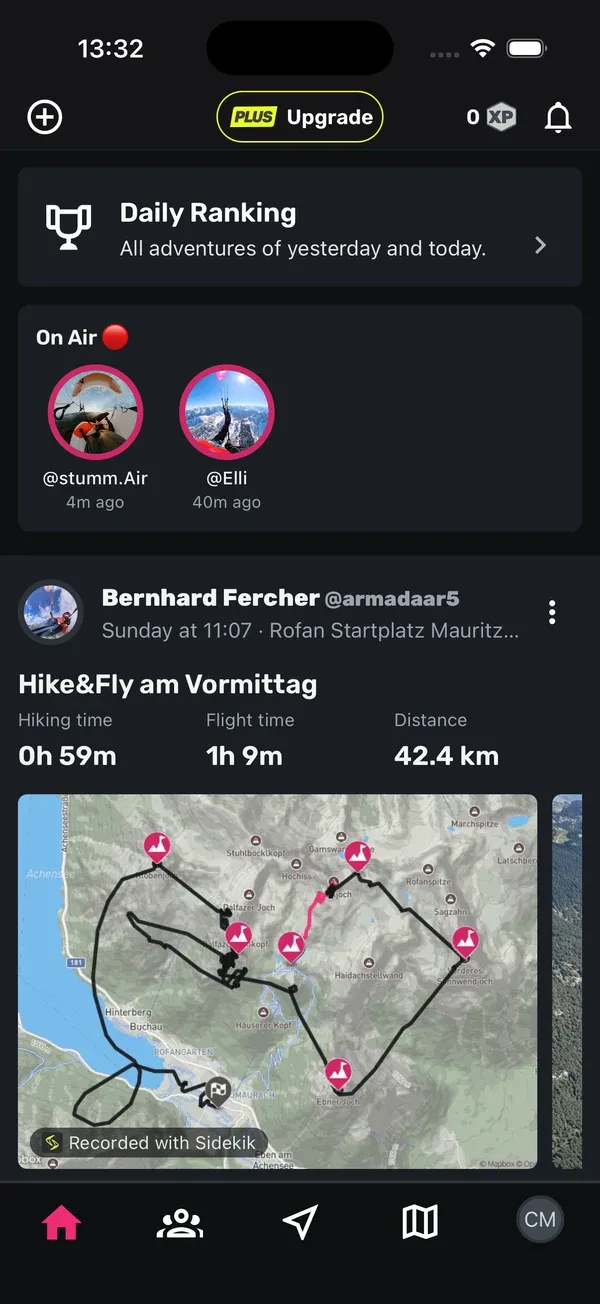
- Home: your feed with flights from the pilots you follow, plus your notifications and the upload button at the top.
- Community: Challenges, Clubs and Ranking, and the search for other pilots.
- Record: the big button in the middle. It opens flight tracking.
- Map: discover challenges and segments on the map, and see who’s flying right now with On Air.
- You: the tab with your profile picture. Your progress, statistics, trophies, records and settings.
Tips
- Use your real name. It makes it much easier for flying friends to find you.
- Follow a few pilots from your local area right away. Your feed comes alive much faster.
- Set a default glider in Manage your gliders (the star icon). It’s marked as default in the glider list for your flights.
- Want to fly with goals, the full list of records and more statistics? See what Sidekik Plus adds.
Related guides
Still have questions? Write to us at [email protected].