
Peaks: your summit collection
Every summit you reach lands in your Peaks collection. Hike up to the cross or fly over the top, and Sidekik adds the peak for you after the upload. No challenge to join, no list to load. It works everywhere, with the peaks from OpenStreetMap.
Your peaks are grouped into mountain ranges. Collect enough in a range and you earn a medal there. This guide shows how a peak gets collected, where you find your collection, and how medals, the ranking and peaks in flight work.
1. How a peak gets collected
Sidekik checks every activity you upload, whether you tracked it in Sidekik or imported it as an IGC or GPX file. A peak counts when your track comes close enough to the summit:
- Hiking: within 80 m of the summit.
- Flying: within 200 m of the summit, and no more than 1,000 m above it. Flying higher over a peak doesn’t count.
- No-fly zones: some peaks lie inside no-fly airspace. These only count on foot. Their peak page says “Only hiking collects this peak”.
Each ascent is marked Hiked, Flown over or both (Hike & Fly). If you reach the same peak again, it’s another ascent, but it only counts once in your collection.
Your past flights count too. The first time you open Peaks, Sidekik searches your earlier flights and tells you how many peaks it found there.
XP for peaks. The first time you reach a peak in a season, you get 10 XP. If the peak is new to your collection, you get 30 XP on top. Further visits in the same season don’t earn XP. More in XP and levels.
Good to know: Keep a safe distance from the terrain. 200 m around the summit is plenty when you fly. You don’t have to touch the top.
2. Your peaks on a flight
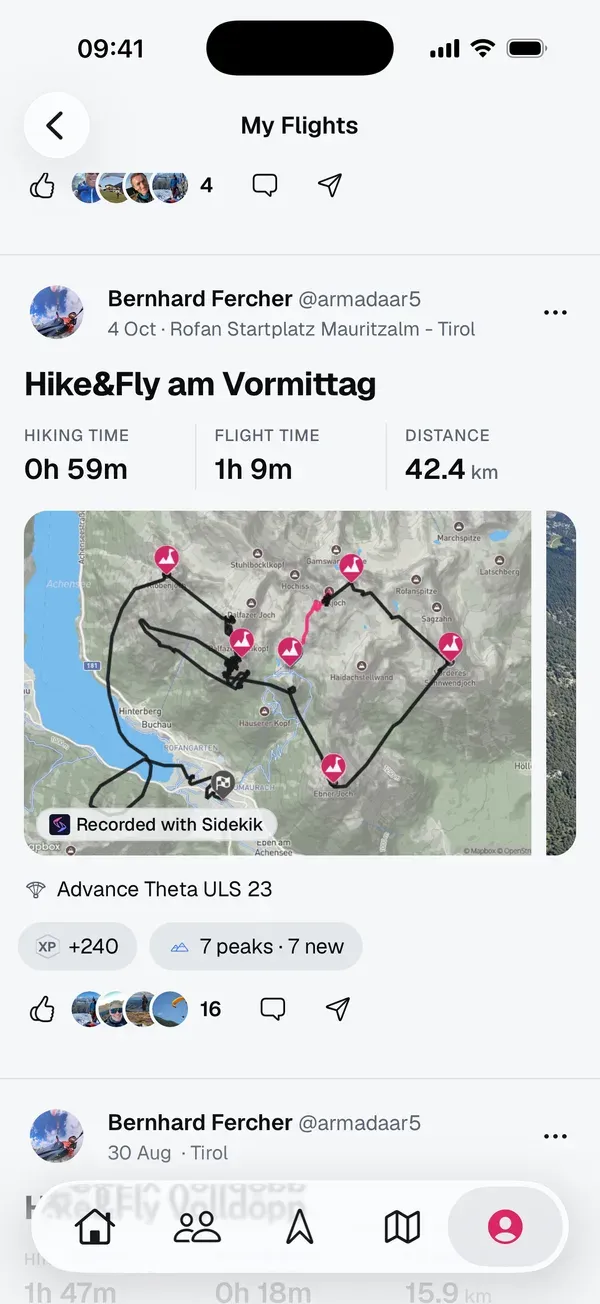
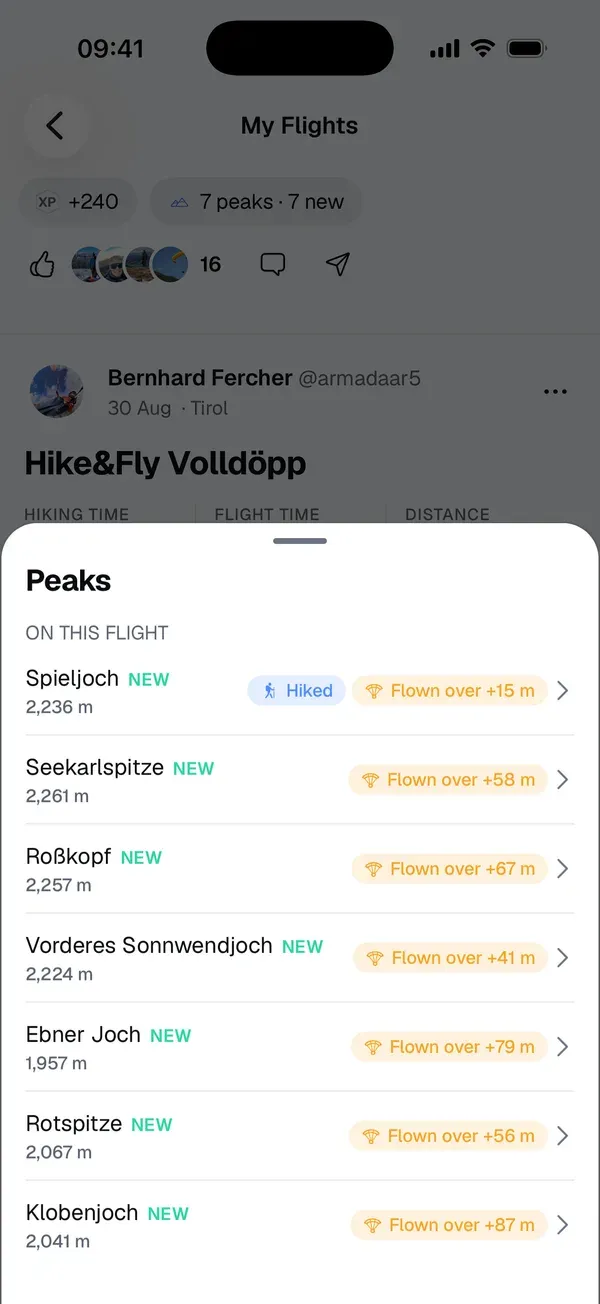
After the upload you’ll see a peaks chip on the flight, for example 7 peaks · 7 new. Tap it to see which peaks you collected on this flight, and whether you hiked them or flew over them. When flying, you also see how high above the summit you were, for example Flown over +58 m.
On the flight page, the peaks section lists the same peaks. NEW marks a peak that’s new to your collection. Were you the very first Sidekik pilot on a peak? The flight shows a First ascent chip. A new medal in a range shows up there as well.
3. Your collection
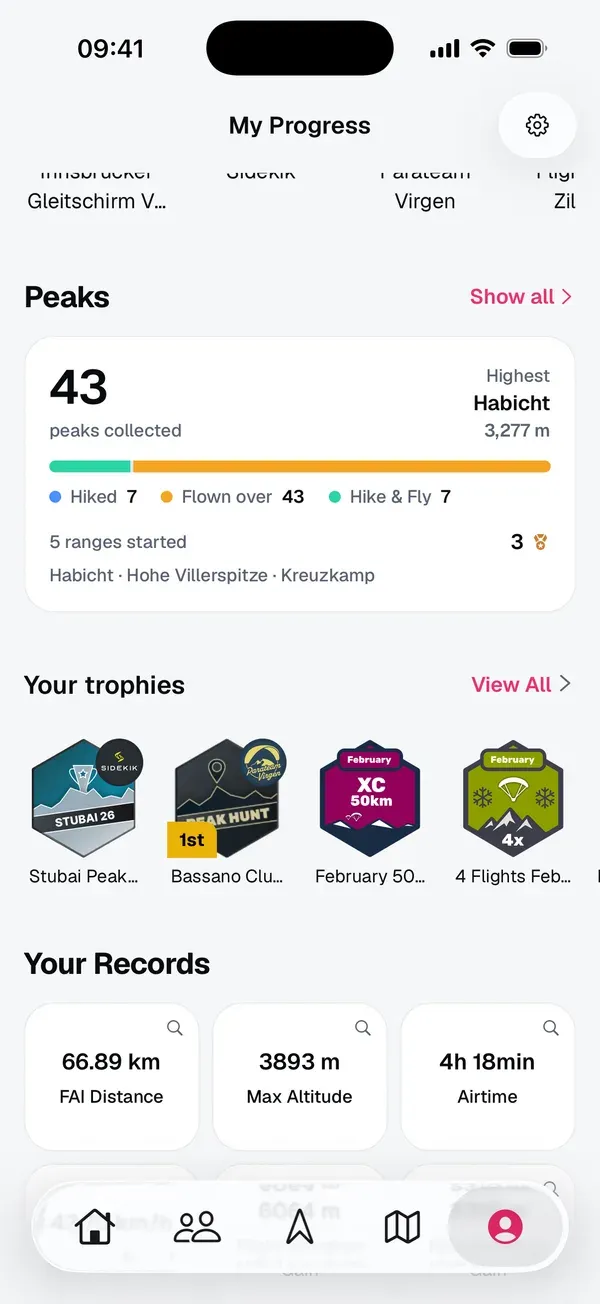
Open the You tab and scroll to Peaks. The card shows how many peaks you’ve collected, your highest peak, the split between hiked, flown over and Hike & Fly, the ranges you’ve started and your medals. Tap Show all to open your collection.
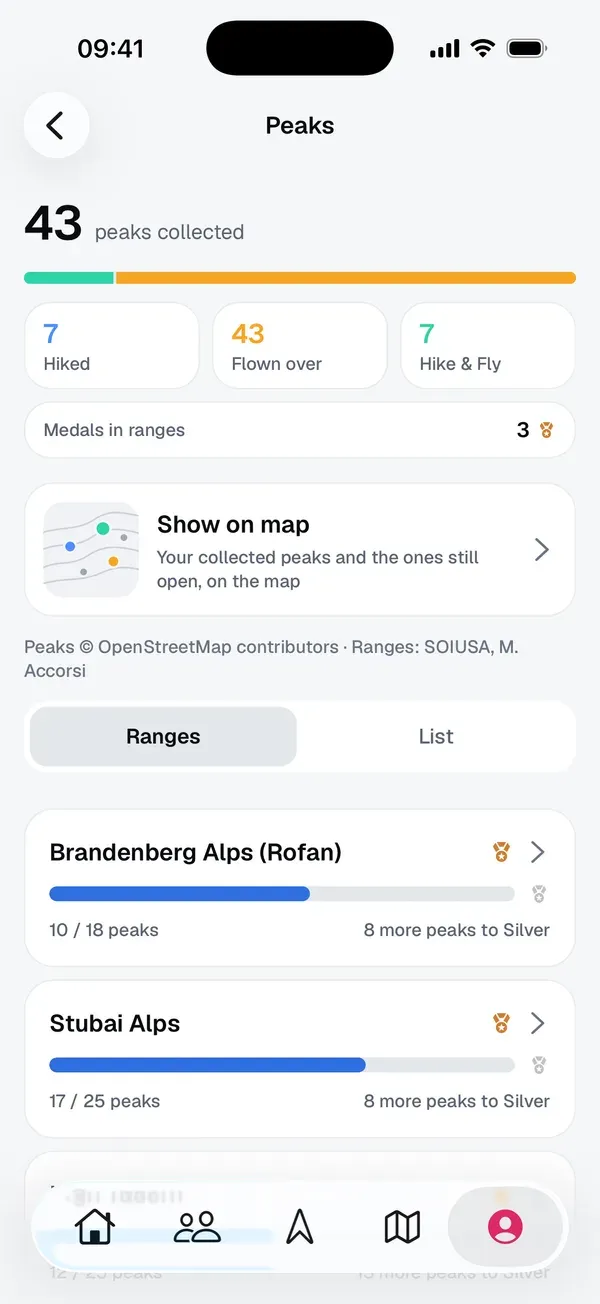
The Peaks screen has two views:
- Ranges: every mountain range you’ve started, with your progress towards the next medal. Tap a range to open it.
- List: every peak you’ve collected. Filter by All, Hiked, Flown over or Hike & Fly and sort by Date, Elevation or Name.
Tap Show on map to see your collected peaks and the ones still open on a map.
Other pilots have a peaks card on their profile too. Tap it to see their collection. If a profile is private, their peaks stay private as well.
4. Ranges and medals
Sidekik groups the peaks into mountain ranges, for example Stubai Alps or Brandenberg Alps (Rofan). In each range you can earn four medals:
| Medal | Peaks needed |
|---|---|
| Bronze | 10 peaks |
| Silver | 25 peaks |
| Gold | 40 peaks |
| Diamond | every peak of the range |
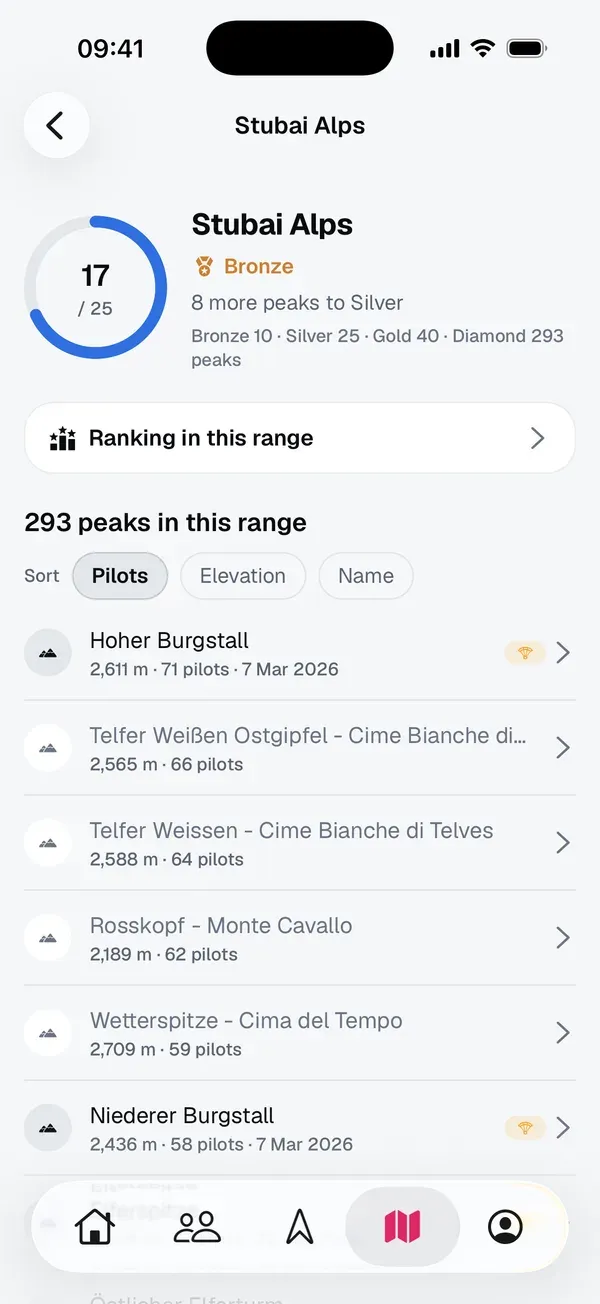
Small ranges need fewer peaks: there, bronze is at most 10 %, silver at most 30 % and gold at most 60 % of the range. Each range shows its own numbers at the top, for example “Bronze 10 · Silver 25 · Gold 40 · Diamond 293 peaks”.
Open a range to see:
- the ring with your progress towards the next medal, for example “8 more peaks to Silver”,
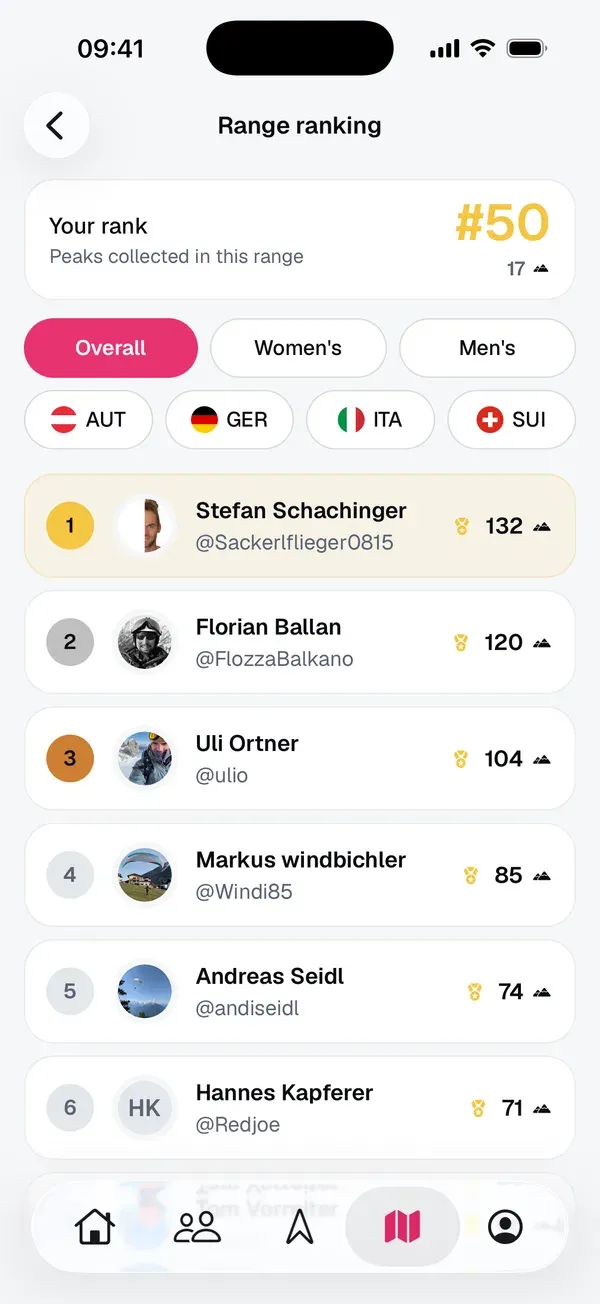
- Ranking in this range: who has collected the most peaks there,
- every peak of the range. Sort by Pilots (how many Sidekik pilots have been up there), Elevation or Name. Peaks you’ve already collected are marked.
When you earn a new medal, you get a notification. Tap it to open the range.
5. A peak’s page
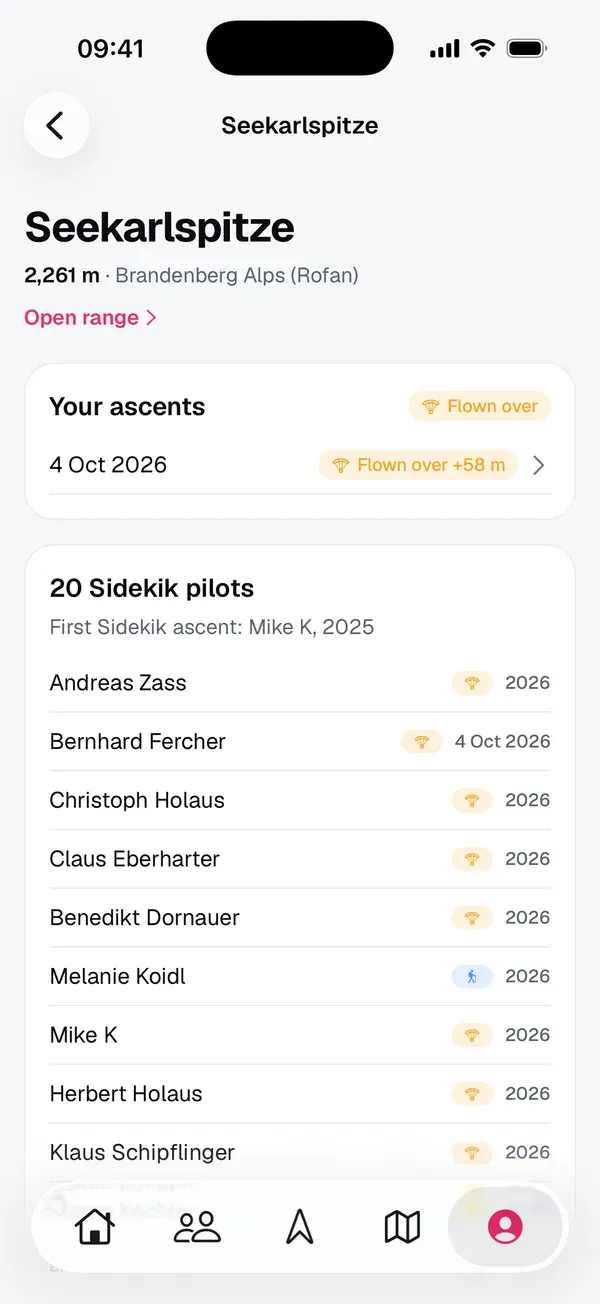
Tap any peak to open its page. You’ll see:
- the elevation and the range, with Open range,
- Your ascents: every time you reached it, hiked or flown over, with the flight,
- how many Sidekik pilots have collected it, who did the first Sidekik ascent, and the latest pilots up there.
6. Peaks on the map
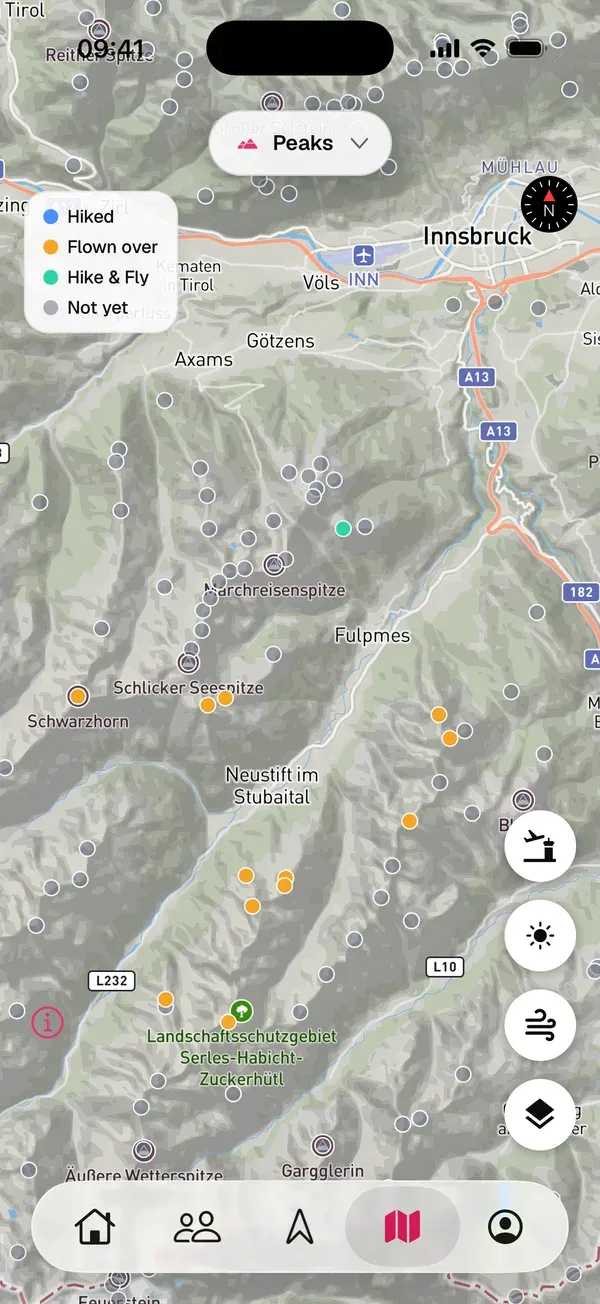
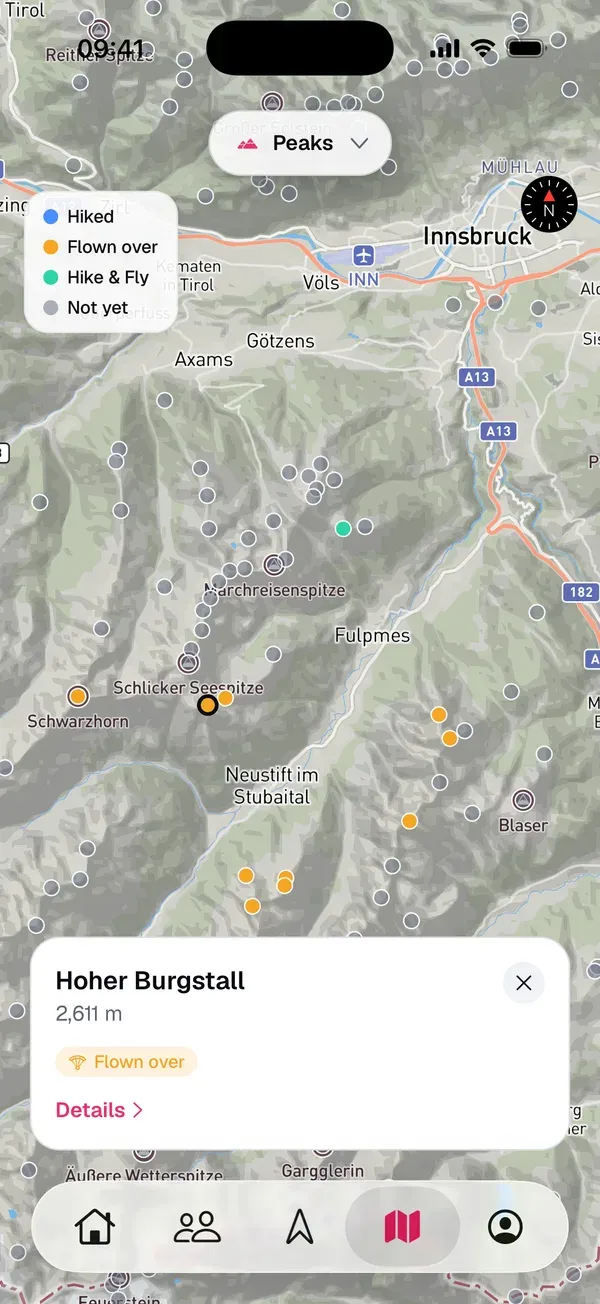
In the Map tab, tap the layer button at the top and choose Peaks. You’ll see your collected peaks in colour (hiked, flown over, Hike & Fly) and the ones you haven’t reached yet in grey. Peaks that many pilots have collected are drawn bigger.
Tap a peak for a short card with its name, elevation and how you collected it. Details opens the peak’s page.
This map is a good way to plan your next tour: look for grey dots near your favourite take-off.
7. The peaks ranking
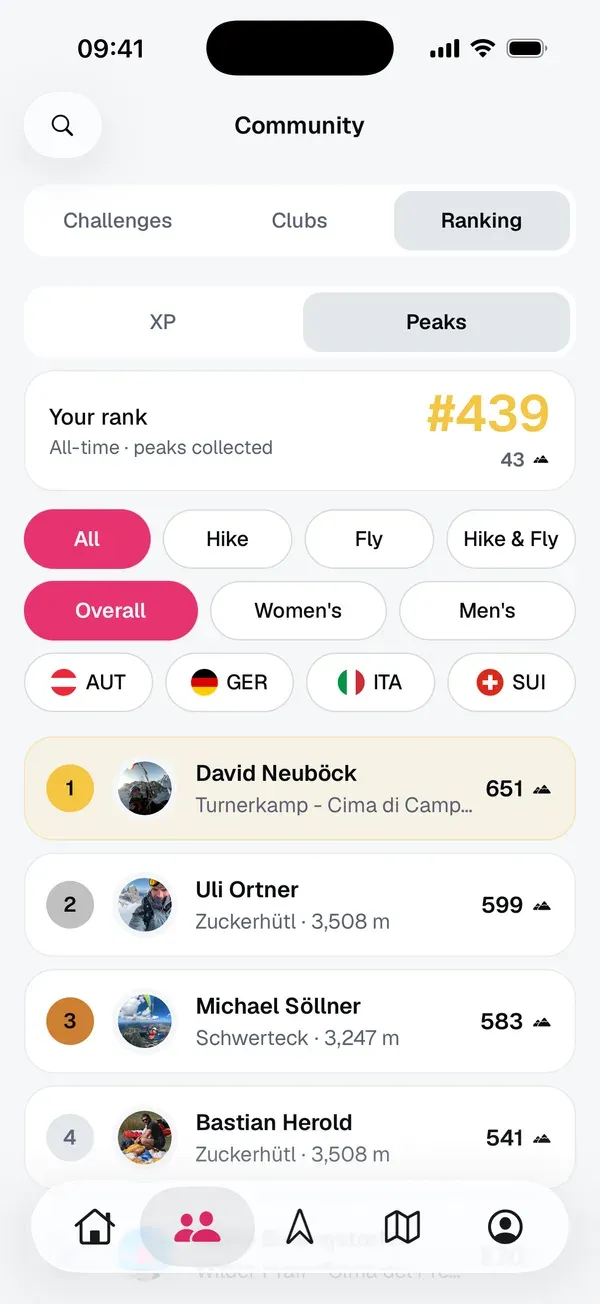
In the Community tab, open Ranking and switch from XP to Peaks. Pilots are ranked by the number of peaks they’ve collected, all-time. Your own rank is at the top.
- Choose All, Hike, Fly or Hike & Fly.
- Filter by Overall, Women’s or Men’s, or by country.
Each range also has its own ranking: open the range and tap Ranking in this range.
8. Peaks in flight (Plus)
With Sidekik Plus you can see peaks live while you track:
- Open the Record tab.
- Turn on Peaks in flight. Sidekik remembers the setting. You can also switch it in Controls during the flight.
- Start tracking.
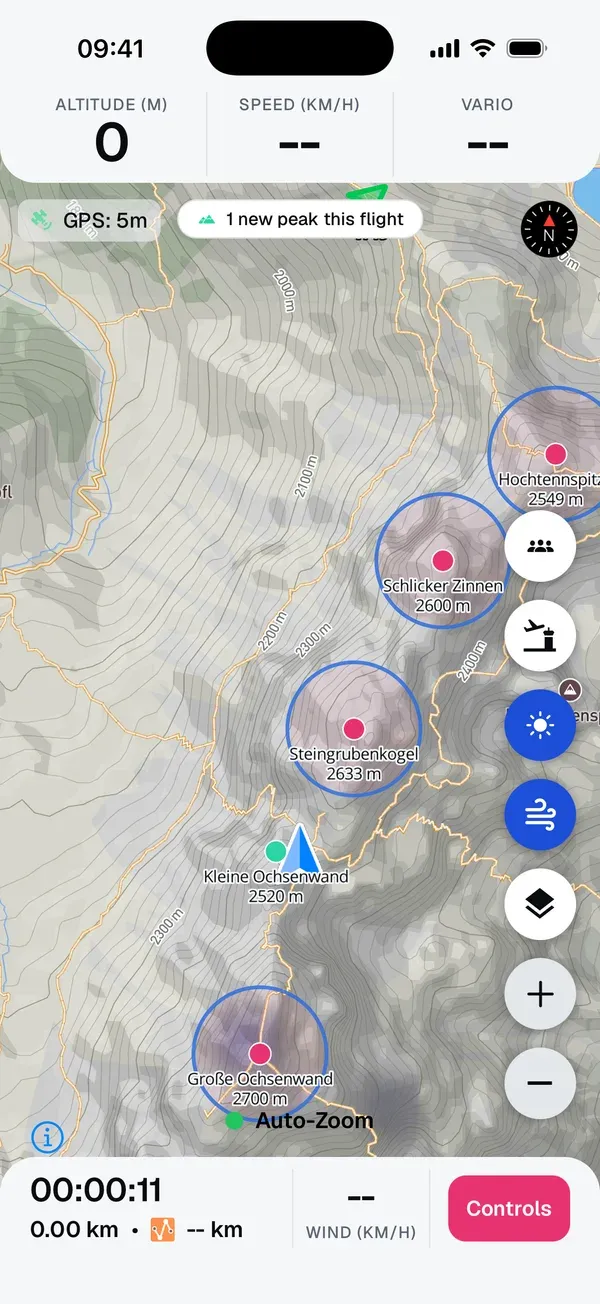
The tracking map now shows the peaks around you, each with its collect zone true to scale:
- open peaks in the brand colour,
- peaks you’ve already collected faded,
- peaks you collect on this flight in teal,
- no-fly peaks with a red ring. They only count on foot.
When you collect a peak that’s new to your collection, you get a banner (“New peak collected!”) with the XP and a short vibration. The counter at the top shows how many new peaks you’ve collected on this flight.
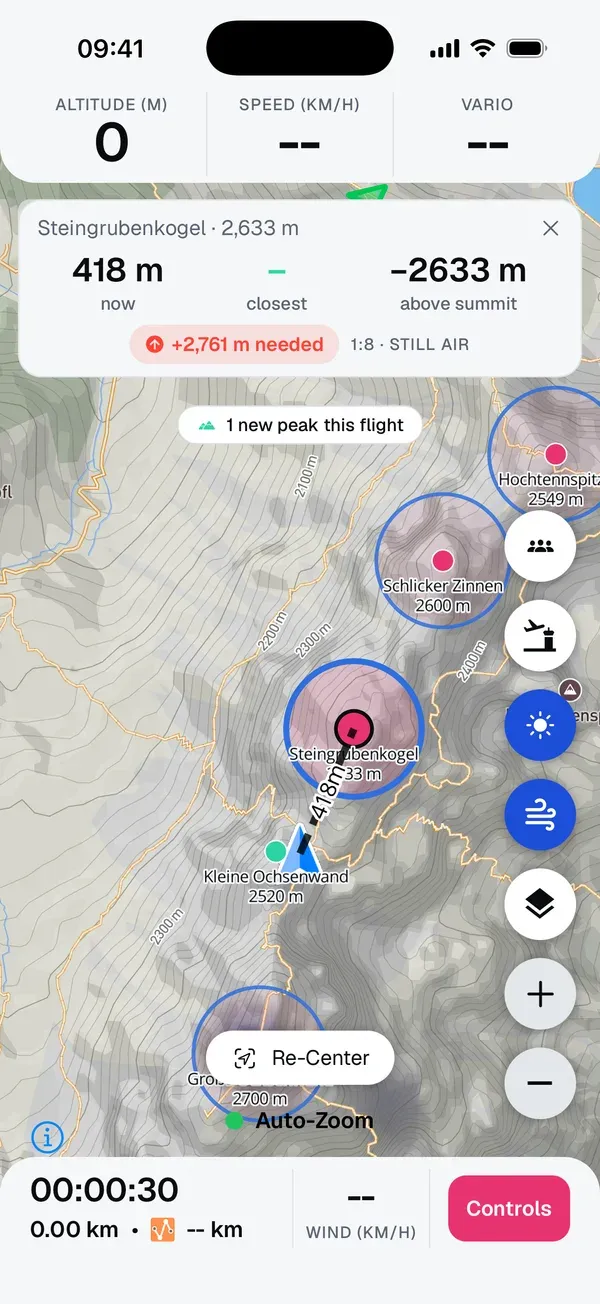
Tap a peak to make it your target. The panel at the top shows how far away it is now, the closest you’ve got so far, and your height above summit. If you’re too low to glide there, it tells you how many metres you still need. Tap the cross to clear the target.
Offline: the peaks of your downloaded offline regions are available without signal. See Track your flight.
Good to know: The live view is a preview. What counts is the check after the upload, with the rules from step 1.
Peaks and Peak Hunts
Peaks and Peak Hunts are two different things:
- Peaks is your personal collection. Every summit counts, all year, anywhere.
- A Peak Hunt is a challenge with its own list of peaks and waypoints, a time window, points and a leaderboard. Its circles and rules are set by the organiser.
One flight can count for both.
Tips
- Open Show on map before a hike & fly and look for grey peaks near your route.
- In small ranges a few peaks are enough for a medal. Check the numbers at the top of the range.
- Hike up and fly off: a peak you’ve hiked and flown over shows as Hike & Fly.
- Download an offline region before you head into the mountains, so peaks in flight works without signal.
Related guides
Still have questions? Write to us at [email protected].