
Settings and notifications
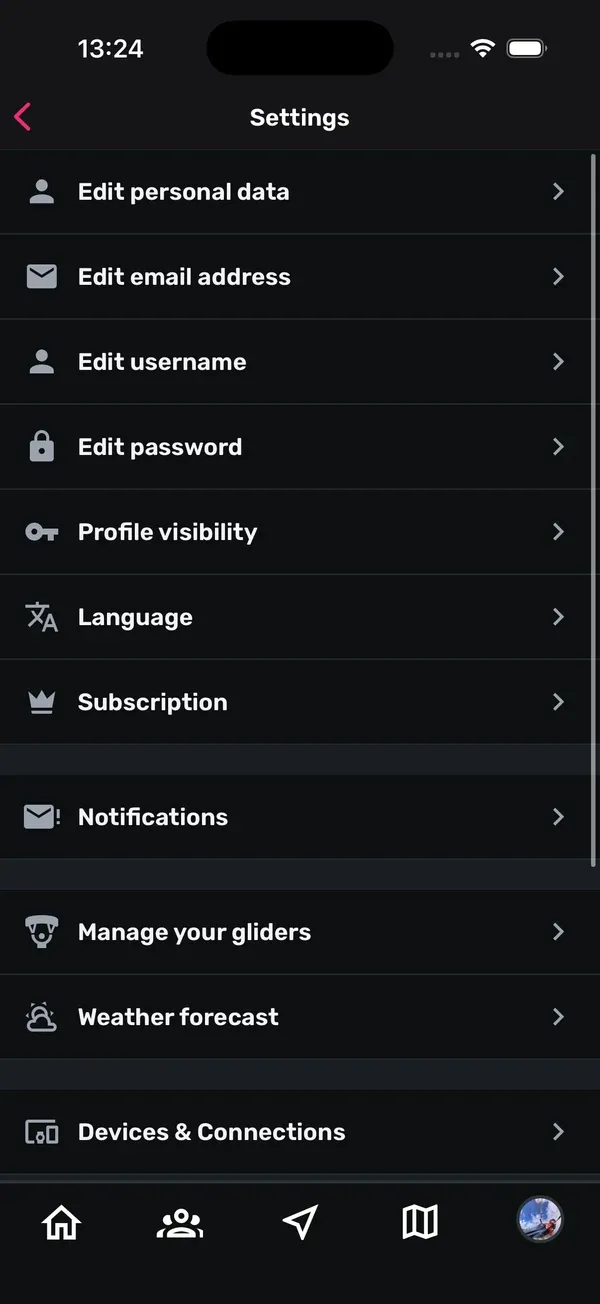
Want to change your username, make your profile private or connect your Garmin account? You’ll find all of that in the settings.
This guide walks you through every item in the settings, from top to bottom, so you know where everything is.
1. Opening the settings
- Open the You tab, the one with your profile picture.
- Tap the cog at the top right.
You can also scroll all the way down in the You tab and tap Settings under More.
At the very bottom of the settings you’ll see which version of the app you’re using.
2. Your account details
The first four items are about you and your login:
- Edit personal data: change your profile picture (Change profile picture), first name, last name, gender and country. Tap Save at the top right.
- Edit email address: enter your new address and tap Save at the top right.
- Edit username: choose a new username and tap Save. Note that this also changes the address of your profile.
- Edit password: tap Request link. Sidekik sends you an email with a link to set a new password.
3. Profile visibility and language
- Profile visibility: choose Public or Private. On a public profile anyone can follow you, and your flights and photos are visible to everyone. With a private profile, other pilots have to send you a follow request first. The profile guide explains what others see.
- Language: choose English or German. You might need to restart the app afterwards.
4. Subscription
Tap Subscription to open your subscription management. That’s where you check and manage your Sidekik Plus subscription. Want to know what Plus includes? Have a look at Free vs. Sidekik Plus.
5. Notifications
Under Notifications you’ll find the Email Notifications. Switch Weekly updates on or off to decide whether Sidekik sends you a weekly email.
Push notifications, for example about new likes and comments, are allowed or blocked in your phone’s settings. If they’re switched off, you’ll see a note at the top of your notifications (the bell on Home). Tap Settings in that note to go straight to your phone’s settings for Sidekik and allow them there.
6. Manage your gliders
In Manage your gliders you keep your glider list up to date:
- Tap Add glider, choose the brand, enter the model and tap Add glider.
- Tap the star next to a glider to make it your default. It’s then marked (Default).
- Use the archive icon for gliders you no longer fly. You’ll find them under Show archived gliders and can bring them back from there.
- Use the trash icon to delete a glider.
More about gliders, and how to pick one for a flight, is in the profile and equipment guide.
7. Weather forecast
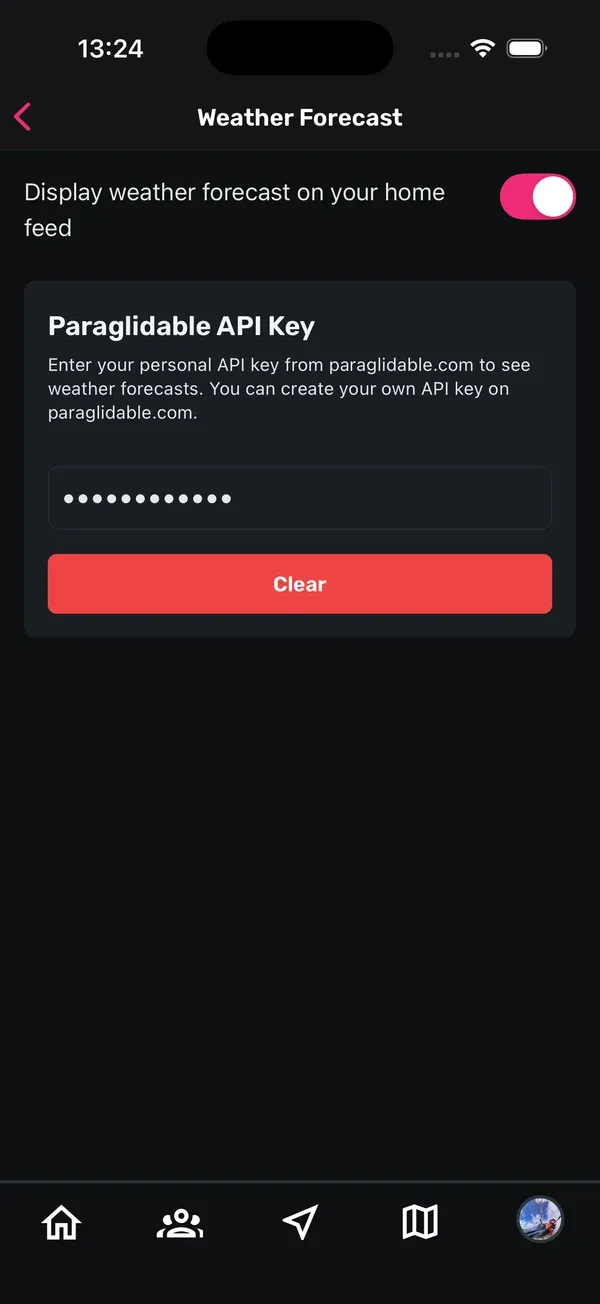
Sidekik can show a weather forecast in your Home feed. Under Weather forecast you set it up:
- Use the switch next to Display weather forecast on your home feed to show or hide it. It’s on by default.
- Under Paraglidable API Key, enter your personal API key. You can create one on paraglidable.com.
- Tap Save.
To remove your key later, tap Clear and confirm. Without your own key, you may still see a forecast if one of your clubs provides one.
8. Devices & Connections
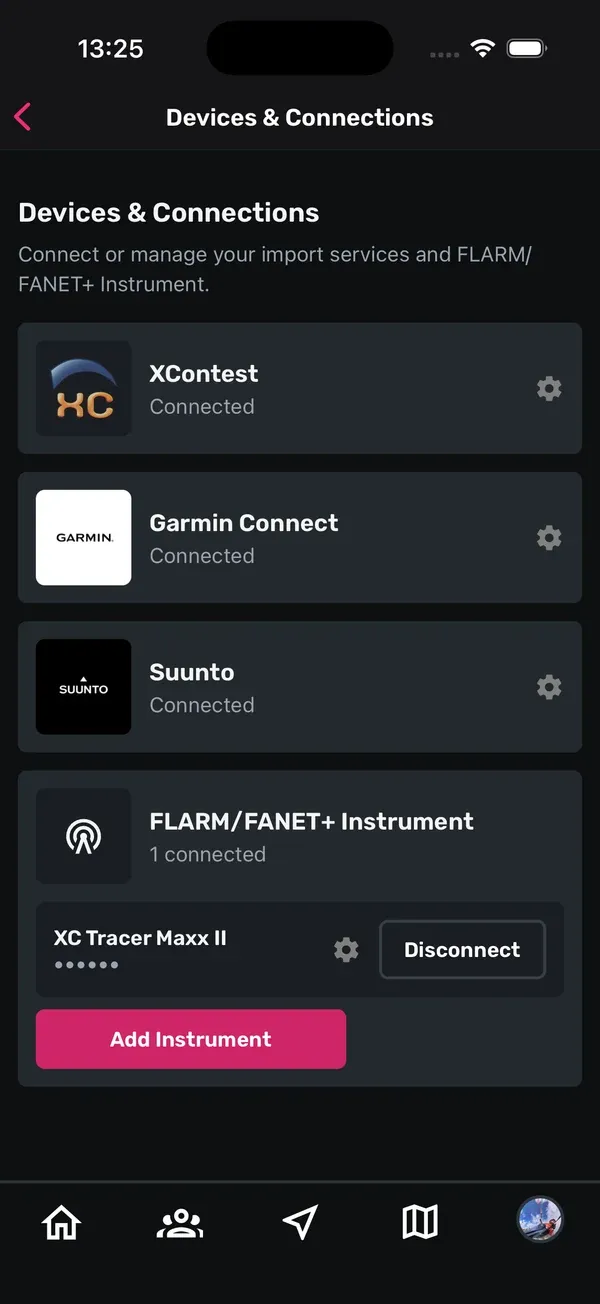
Here you connect services and instruments. Each one shows whether it’s Connected or Not connected.
- XContest: imports your flights from XContest automatically.
- Garmin Connect: imports your Hike & Fly activities from Garmin devices.
- Suunto: imports your Hike & Fly activities from Suunto devices.
- FLARM/FANET+ Instrument: tap Add Instrument, enter an Instrument name and the Instrument ID, and save. You can add more than one. Tap Disconnect to remove an instrument.
Tap Connect to set up a service. Once it’s connected, the cog next to it opens its settings. The import guide explains each connection step by step.
9. Support
Need help or have feedback? Under Support you can choose Contact by email or Contact by WhatsApp.
10. Logout and delete account
- Logout: signs you out of Sidekik on this phone and takes you back to the welcome screen.
- Delete account: shown in red at the very bottom. On the next screen, tap Delete and confirm.
Good to know: deleting your account removes all your flights and data, and it can’t be undone.
Tips
- Changing your username also changes the address of your profile. Let your friends know if you’ve shared a link to it.
- After switching the language, restart the app if some texts still show the old language.
- Not getting any push notifications? Check your phone’s settings for Sidekik first.
- Archive gliders you’ve sold instead of deleting them. You can bring them back at any time.
Related guides
Still have questions? Write to us at [email protected].