
Clubs at a glance
Your club is where your flying friends are. In Sidekik, every club has its own page: you see who’s a member, which Peak Hunts, tasks and segments the club is running, and who’s at the top of the club leaderboard this year.
This guide shows you how to find and join your club, what’s on the club page, and how to start a new club if yours isn’t in Sidekik yet.
1. Find a club
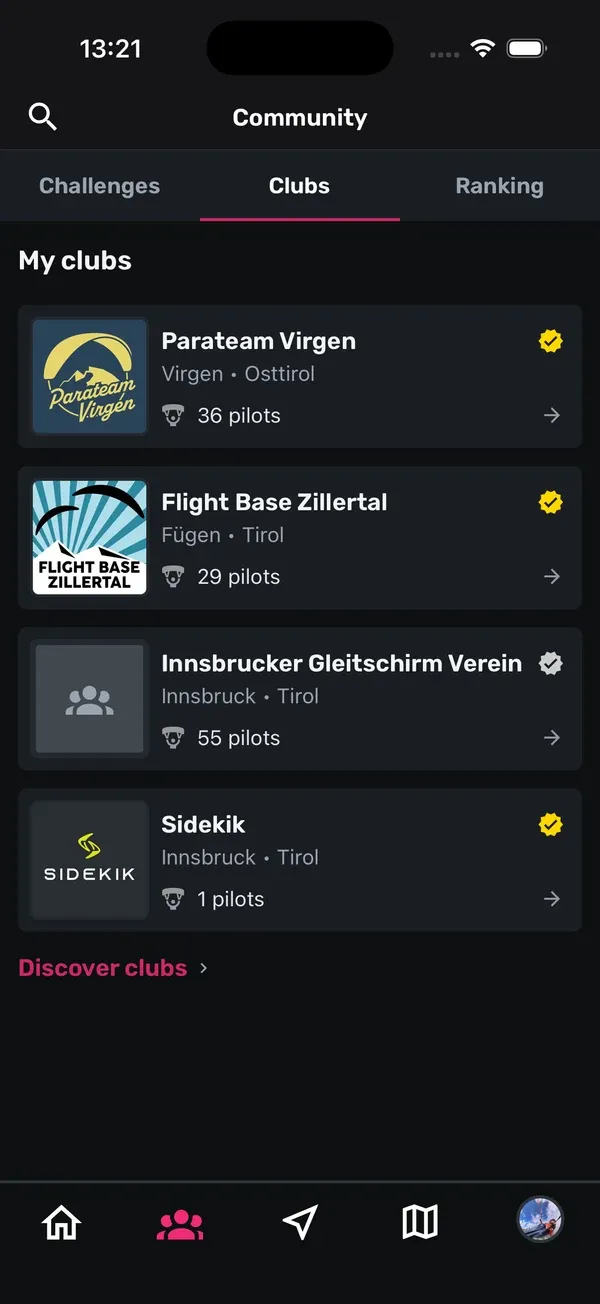
- Open the Community tab and switch to Clubs.
- Under My clubs you see the clubs you’re already in.
- Tap Discover clubs to see all clubs.
On Discover clubs you can type a name into Search clubs… or narrow the list by country with the buttons All, AUT, DE, CH and ITA. The clubs with the most pilots are at the top. Clubs with a Silver or Gold plan show a small badge on their card.
2. Join a club
- Tap a club to open its page.
- Tap Join club.
Every request goes to the club admins first. You’ll see a message that your request has been sent, and Request pending on the club page. As soon as an admin approves you, you’re a member and the club shows up under My clubs.
Changed your mind before you’re approved? Tap Withdraw request.
To leave a club later, open the club page, tap the three dots at the top right and choose Leave club. Confirm with Leave. The pilot who created a club can’t leave it.
3. Your club in your profile
When you sign up, Sidekik asks about your club in the Club step. You can pick your club from the list, which sends a join request right away, or choose Other club and enter a name to start a new club.
You can join more clubs at any time through Discover clubs. Your clubs appear under Clubs on your You tab and on your profile, so other pilots can see where you fly.
4. The club page
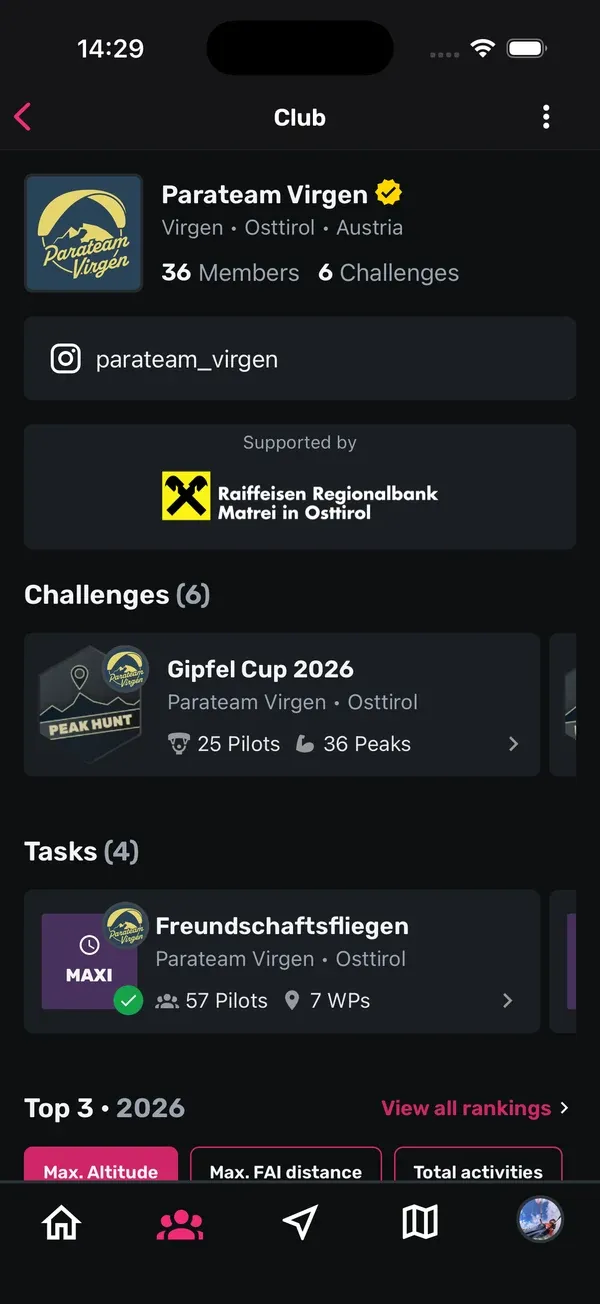
At the top you see the club’s logo, name and location, and how many Members and Challenges it has. Below that come the club’s bio, its Instagram and website, and its sponsors, if the club has added them.
Further down, the page is split into sections. Each one only shows up if the club has something in it:
- Challenges: the club’s Peak Hunts. Swipe sideways if there are several. Running ones come first, finished ones at the end.
- Tasks: the club’s competition tasks.
- Segments: the club’s segments.
- Top 3: a preview of the club leaderboard (see the next step).
- Members: everyone in the club. Tap a pilot to open their profile, or follow them right from the list. Admins are marked with [Admin].
How to take part in Peak Hunts, tasks and segments is explained in Club Peak Hunts, tasks and segments.
5. The Top 3
The Top 3 box shows the three best members of the current year. Tap one of the buttons to switch between Max. Altitude, Max. FAI distance and Total activities. Tap a pilot to open their profile.
View all rankings opens the full club leaderboard with many more criteria. The full ranking is only available for clubs with a club subscription. All about it in The club leaderboard.
6. Start a new club
Your club isn’t in Sidekik yet? You can create it yourself:
- Open Discover clubs and tap Create at the top right.
- Enter the club’s name in Create Club and tap Create.
- Fill in the club profile and save it.
How to set up the profile, approve members and manage your club is explained in Running a club.
Tips
- Search before you create. Your club might already be in Sidekik. Try a short part of its name in Search clubs….
- Use the country buttons. They make the list much shorter.
- Request pending for a while? The club admins get a notification about your request. If it takes long, give them a nudge at the next club evening.
- Follow your club mates. Open the members list and follow the pilots you know. Their flights then show up in your feed on Home.
Related guides
Still have questions? Write to us at [email protected].