
Competition tasks
A task is a small competition: a set of turnpoints you fly within a given time window. Your club sets it up, you join in the app, fly it and see where you stand in the results.
There are two kinds of tasks. In a RACE, you fly all turnpoints in order, as fast as possible. In a MAXI, you collect as many turnpoints as you can within the maxi time.
Tasks are created by club admins outside the app. In the app, you find them, join them and fly them.
1. Find a task
Tasks belong to clubs. Go to Community and open one of My clubs, or find a club under Discover clubs. On the club page, scroll to the Tasks section. Each card shows the type (RACE or MAXI), the number of pilots and the number of turnpoints.
You can also open a task directly from a link or QR code that someone shares with you.
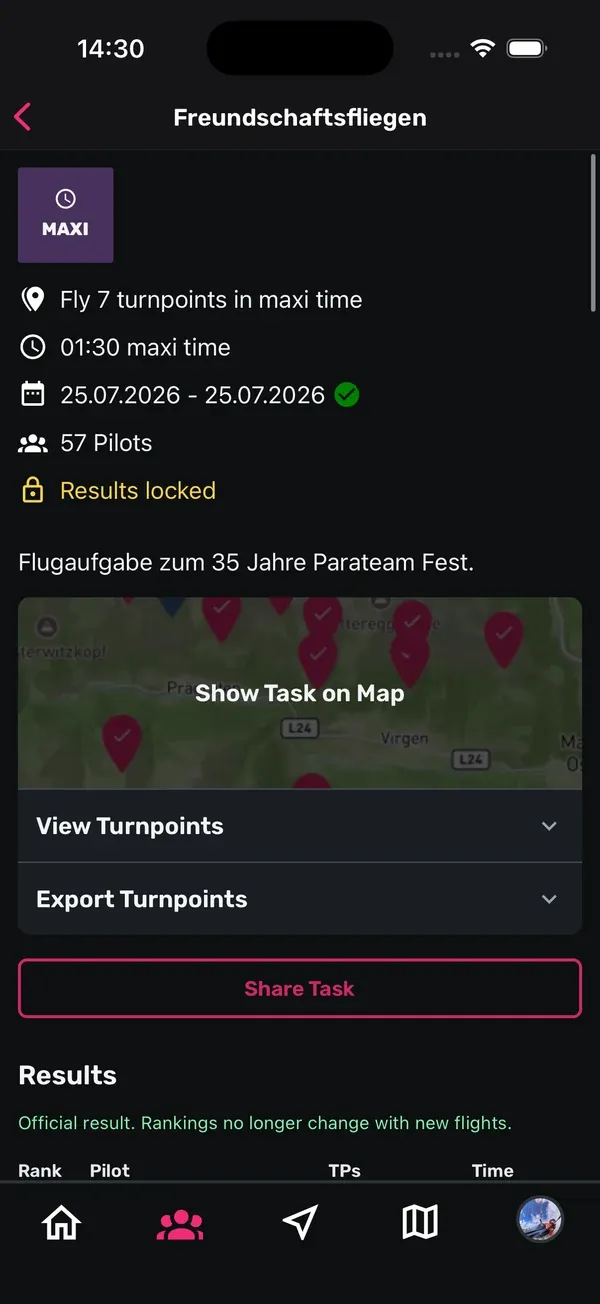
The task screen shows what the task is about: how many turnpoints to fly, the maxi time for MAXI tasks, the dates, how many pilots take part, and a description from the organiser.
2. Join the task
- Tap Join Task.
- Confirm with Join.
Now the task appears in your list of tasks for tracking. If you change your mind, tap Leave Task. Be aware that this removes your results.
If you don’t see a join button, the organisers manage participants themselves. The screen then says: “This task can only be managed by admins.”
3. Look at the turnpoints
- Show Task on Map opens the whole course on a map. Tap a turnpoint to see its details: type, description, radius, points, coordinates, maximum altitude and its position in the order.
- View Turnpoints lists all turnpoints in a table, with name, type, coordinates, radius in metres and points.
The types tell you what each point is for: takeoff, the start of the speed section, normal turnpoints, the end of the speed section and goal.
4. Export the turnpoints
Want to fly the task with your vario or another flight app? Tap Export Turnpoints and choose a file:
- .xctsk, for example for XC-Track or FlySkyHy. This is the only format that includes the radius of each turnpoint.
- .wpt
- .gpx
You need to be logged in to download the files.
5. Fly the task with Sidekik
- Open Record.
- Tap Select next to Load Challenge WPs.
- Under My Tasks, pick your task. Only tasks you have joined appear here.
- Start your flight as usual.
The map shows the course as a line with arrows from turnpoint to turnpoint, plus the cylinder around each turnpoint. Turnpoints you have reached are marked on the map, and Sidekik plays a sound when you tag one. The top panel shows a task timer.
How a turnpoint counts:
- You need to fly into the cylinder, the circle with the turnpoint’s radius.
- Turnpoints count in order. Only the next turnpoint on the course counts, so skipping one doesn’t help.
- The timer starts when you enter the start of the speed section. If you are already inside it when you start tracking, the timer starts when you leave the cylinder.
- The timer stops when you reach the end of the speed section.
What you see during the flight is your live view. Your score comes from the flight you upload.
6. The results
Below the task you find Results. Tap a pilot to see their flight on the task map.
- Before the results are published, pilots are listed alphabetically.
- Live results update with every new flight.
- Once the organisers lock the results, it says Official result, and new flights no longer change the ranking.
RACE: only pilots who flew all turnpoints in the correct order are ranked, sorted by the fastest time. A tick in the Goal column shows who made it.
MAXI: the table shows your turnpoints (TPs) with their points, your Time with its points, Landing points and the Total. The ranking goes by total points. Landing points are added by the organisers.
Tips
- Join before you fly: only joined tasks appear under My Tasks in the Record tab.
- Use .xctsk for your vario: it’s the only export that keeps the turnpoint radius.
- Check the turnpoint heights: some turnpoints have a maximum altitude. You see it in the turnpoint details.
- Save the region offline: with an offline region and Sidekik Plus, your tasks are also available without internet. See Tracking a flight.
Related guides
Still have questions? Write to us at [email protected].