
Running a club
As a club admin, you look after your club’s home in Sidekik. You decide who gets in, keep the club profile up to date and manage the club’s plan.
This guide is for admins. If you just want to join a club, start with Clubs at a glance.
Tip: The easiest way to manage members, Peak Hunts, tasks and segments is the club admin page in your browser: app.sidekik.cloud/manage-my-clubs. More in step 9.
1. Create your club
- Open the Community tab, switch to Clubs and tap Discover clubs.
- Tap Create at the top right.
- Enter your club’s name in Create Club (up to 30 characters) and tap Create.
The club profile opens right away so you can fill it in (see the next step). The pilot who creates a club is its admin. The creator can’t leave the club and can’t lose their admin rights.
2. Edit the club profile
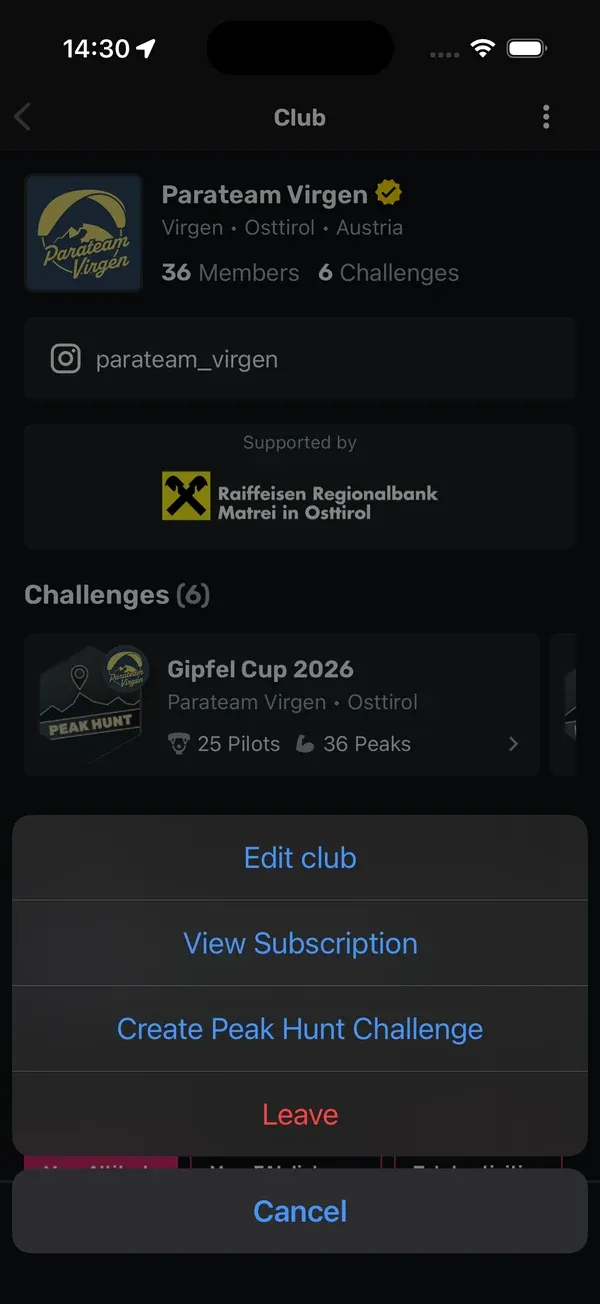
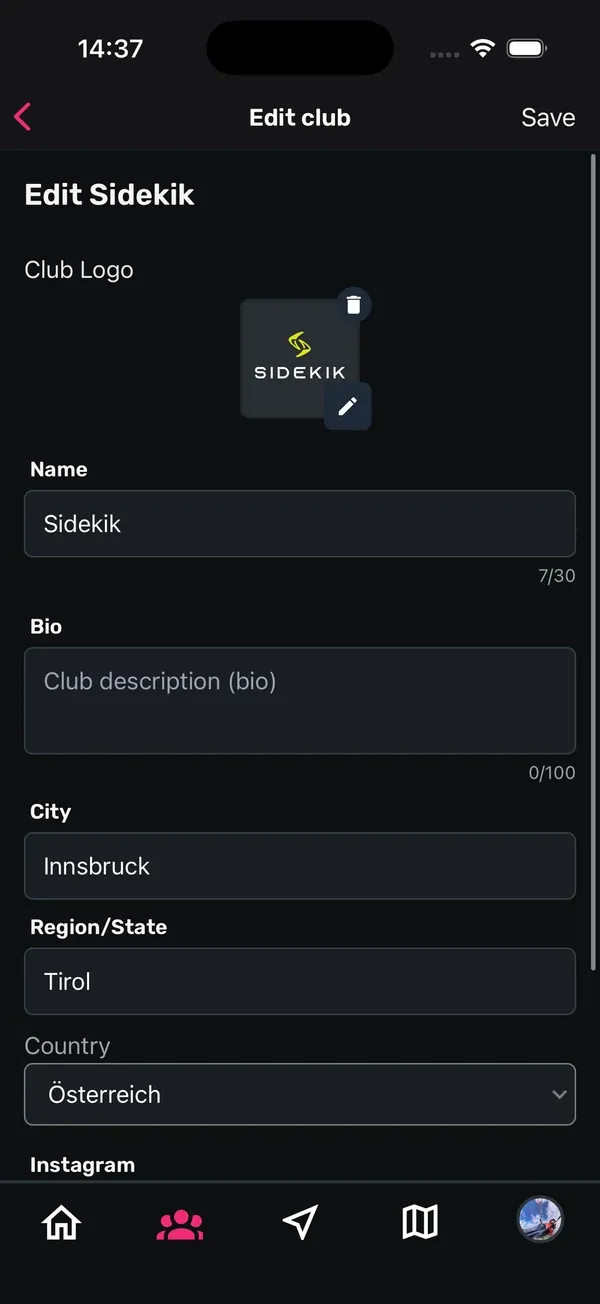
To change the profile later, open your club’s page, tap the three dots at the top right and choose Edit club.
- Club Logo: tap the pencil to pick an image. It’s cropped to a square. The bin icon removes the logo.
- Name: up to 30 characters.
- Bio: a short description of your club, up to 100 characters.
- City and Region/State: where your club is at home.
- Country: choose from the list. The country names are shown in German (Österreich, Deutschland, Schweiz, Italien). If your country isn’t there, pick Anderes Land (“other country”).
- Instagram: your handle, without the @.
- Website: the full address, starting with https://.
Tap Save at the top right when you’re done.
3. Approve or dismiss requests
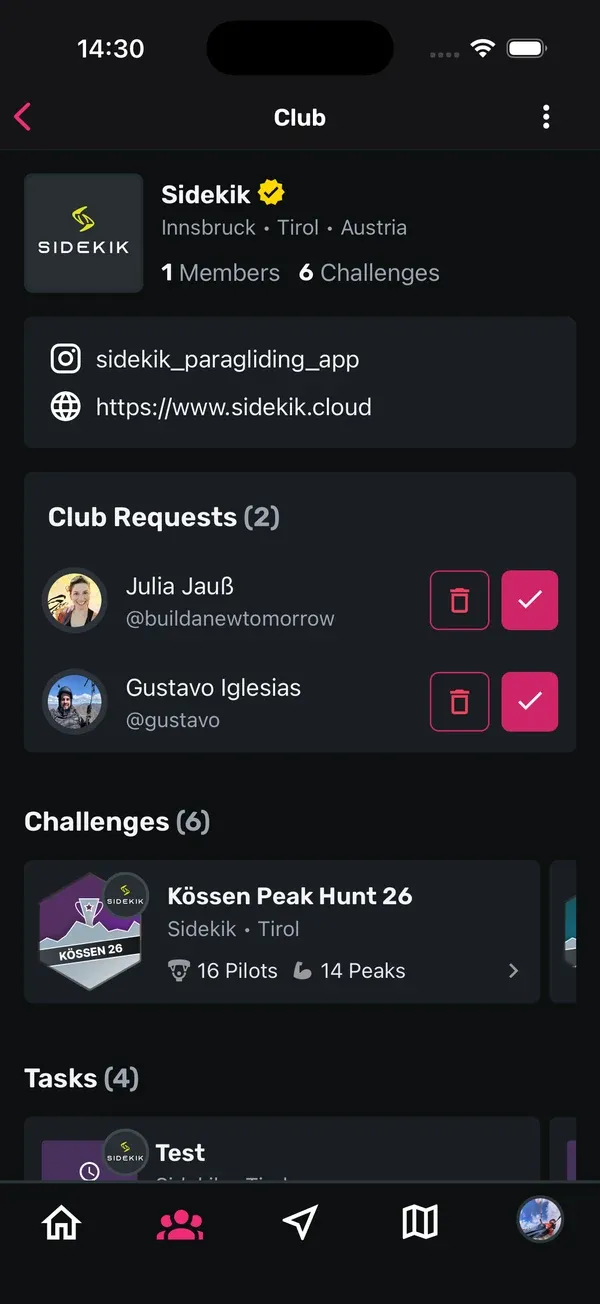
Every pilot who wants to join sends a request, and you get a notification. Open your club’s page: at the top you’ll find Club Requests with the number of open requests. Only admins see this section.
- Approve: tap the tick next to the pilot. They’re now a member.
- Dismiss: tap the bin icon and confirm with Dismiss.
4. Member limits
Your club plan includes a number of member slots, and Member Packages add more. Only approved members count.
When only a few slots are left, a yellow warning appears in Club Requests: Only … member slots remaining. Consider upgrading soon. When all slots are used, it turns red with Member limit reached, and you can’t approve new members until you have more slots. Show Subscription takes you straight to your plan.
5. Manage members and admins
In the members list on your club page, every member has three dots next to their name. Tap them to:
- Make admin: give the member admin rights. Confirm with Make admin.
- Remove admin: take admin rights away again.
- Remove from club: remove the member. Confirm with Remove.
Every admin can do everything described in this guide, so only give admin rights to people you trust. Admins are marked with [Admin] in the list.
6. Your club subscription
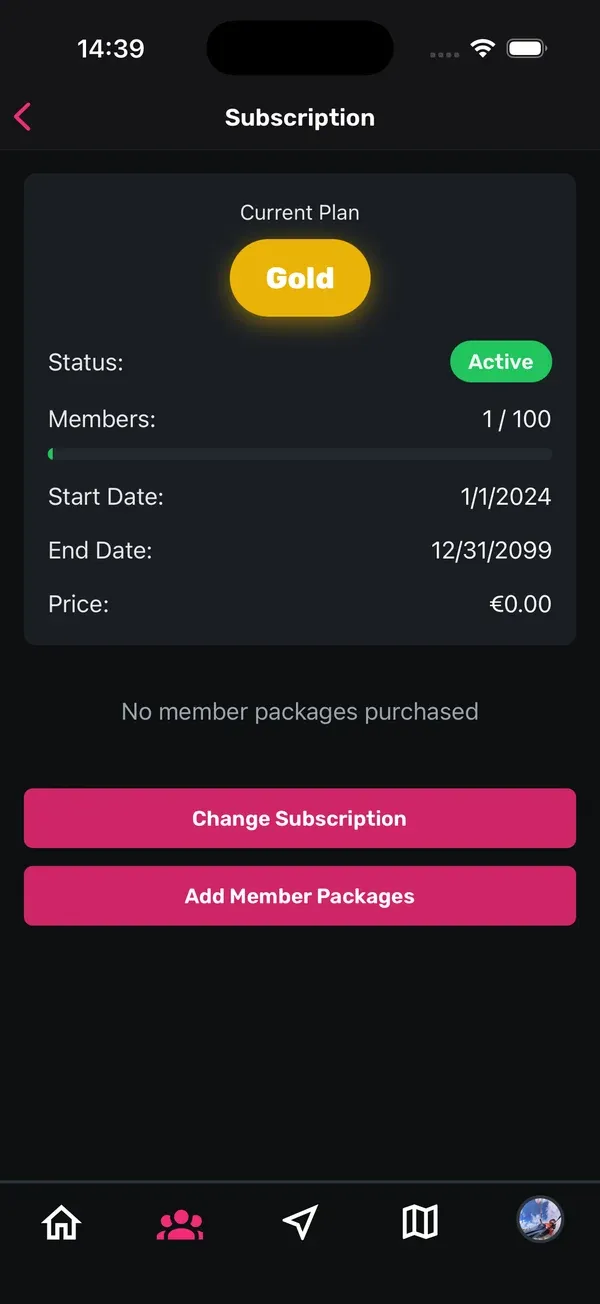
Open your club’s page, tap the three dots and choose View Subscription. The Subscription screen shows:
- Current Plan: Free, Silver or Gold.
- Status: Active, Expiring, Expired or Cancelled.
- Members: how many of your member slots are used, with a bar that turns yellow and then red as you get close to the limit.
- Start Date, End Date and Price of the current period.
- Member Packages: every package you’ve added, with Purchase Date, Member Slots and Price.
If nothing is set up for your club yet, you’ll see No subscription details available.
Good to know: Club plans are separate from Sidekik Plus. A club plan unlocks features for the whole club, like the full club ranking (Silver and Gold) and custom date ranges in the leaderboard (Gold). It doesn’t give anyone Sidekik Plus, and Sidekik Plus doesn’t upgrade your club.
7. Change your plan or add Member Packages
You can’t buy club plans in the app. Instead:
- On the Subscription screen, tap Change Subscription or Add Member Packages.
- Your email app opens with a message to [email protected] and the subject already filled in.
- Tell us what you’d like and send it. We’ll take care of the rest.
You’ll find all plans and prices on our clubs page.
8. Create a Peak Hunt in the app
You can set up a Peak Hunt for your club right in the app.
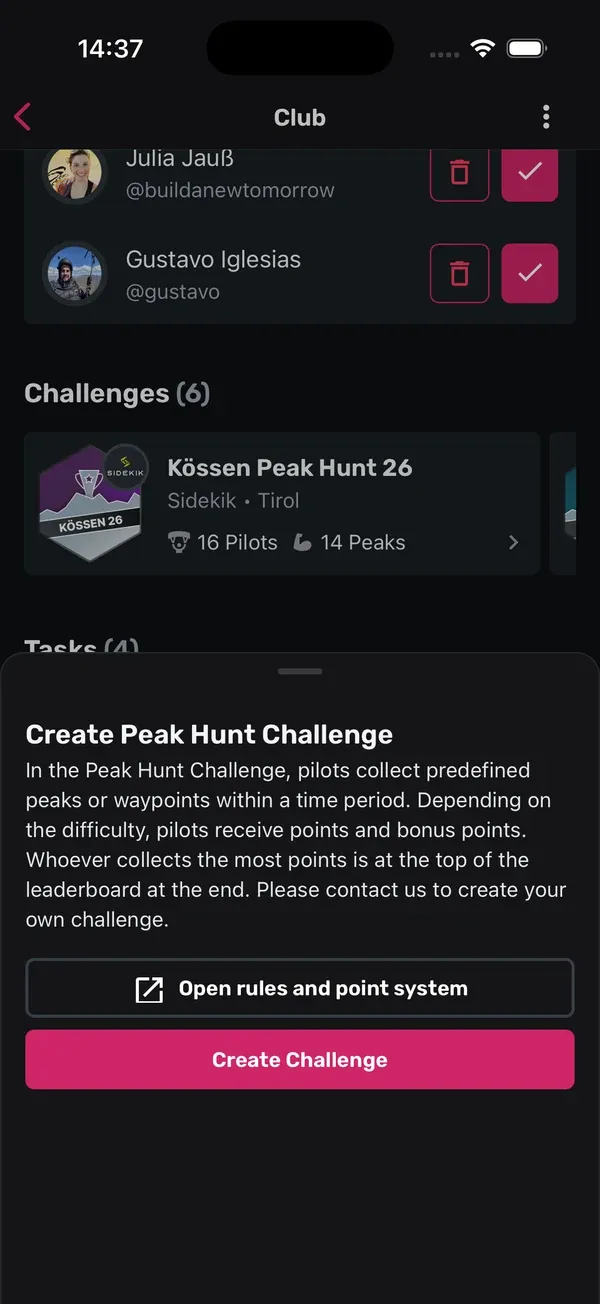
- Open your club’s page, tap the three dots at the top right and choose Create Peak Hunt Challenge.
- A sheet explains how a Peak Hunt works. Tap Create Challenge.
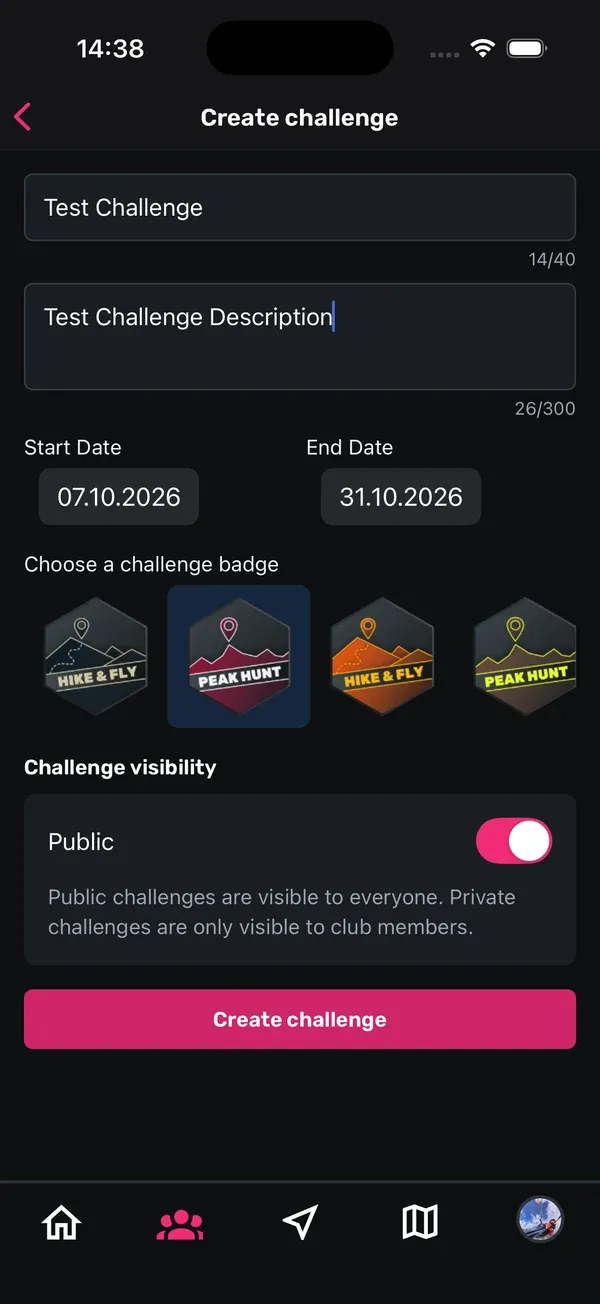
- On Create challenge, enter a title and a description, set the Start Date and End Date and pick a badge under Choose a challenge badge.
- Under Challenge visibility, decide whether the challenge is Public. Public challenges are visible to everyone, private ones only to club members. Free clubs can only create private challenges.
- Tap Create challenge. Edit peaks opens.
Now add the peaks:
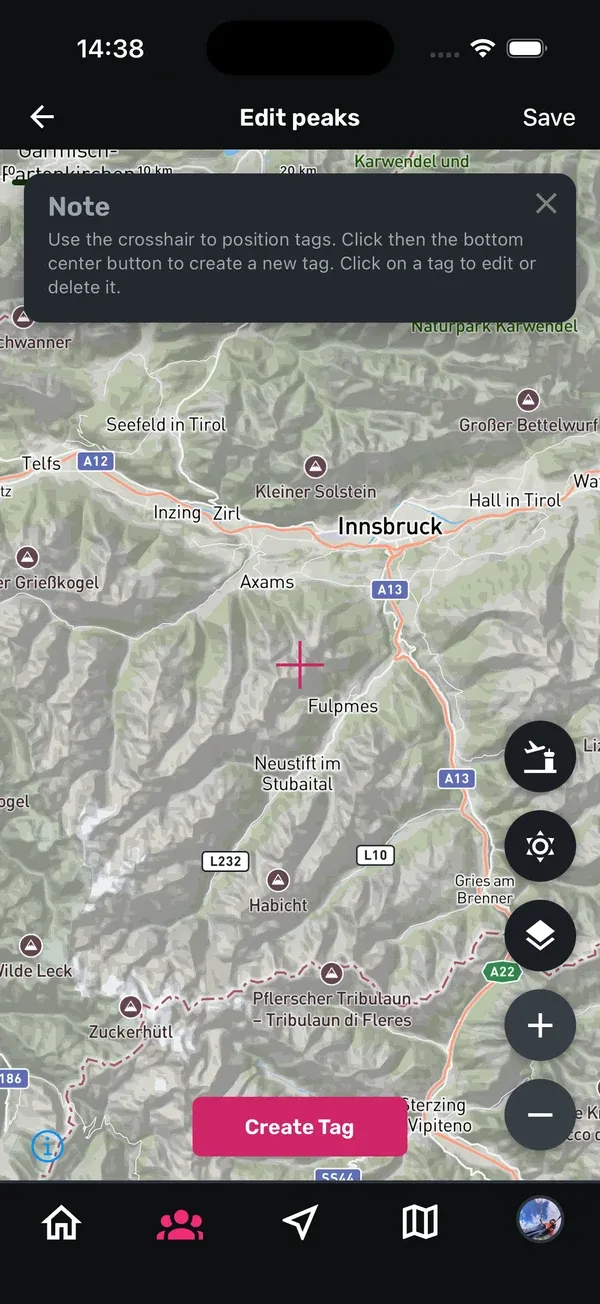
- Move the map until the crosshair sits on the peak, then tap Create Tag.
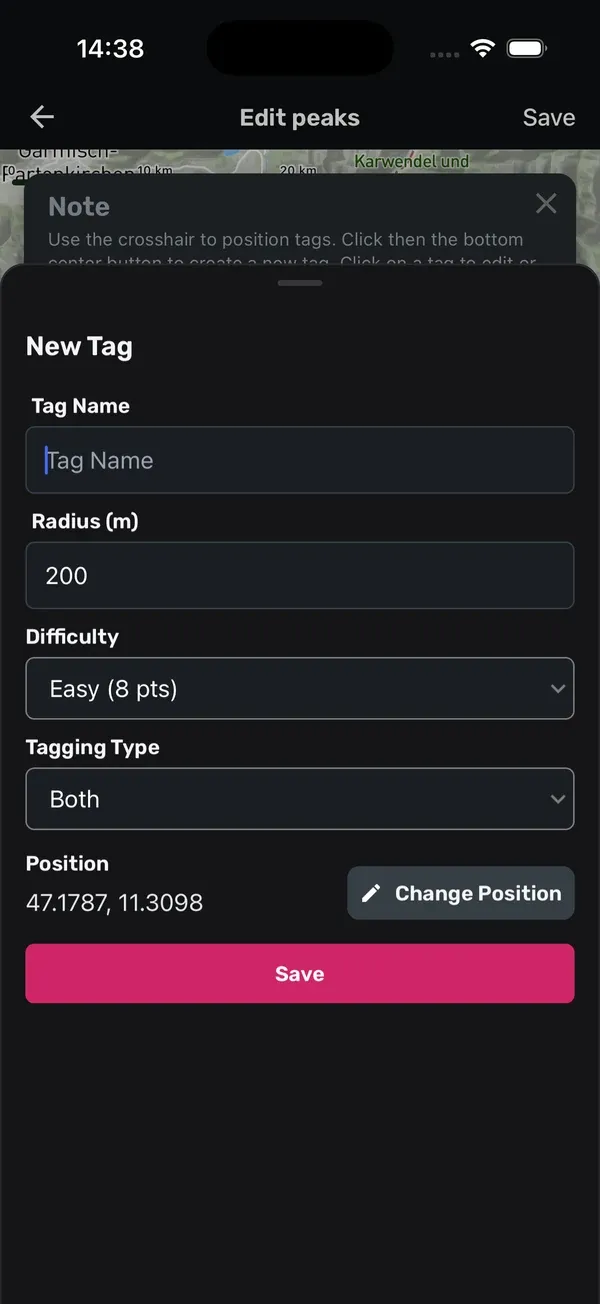
- In New Tag, enter the Tag Name and the Radius (m), between 200 and 1500 metres.
- Choose the Difficulty: Easy (8 pts), Medium (10 pts), Hard (12 pts) or Very Hard (14 pts).
- Under Tagging Type, choose whether the peak counts for Fly, Hike or Both.
- Tap Save in the sheet and repeat this for every peak. Tap a tag on the map to edit or delete it.
- When all peaks are in, tap Save at the top right.
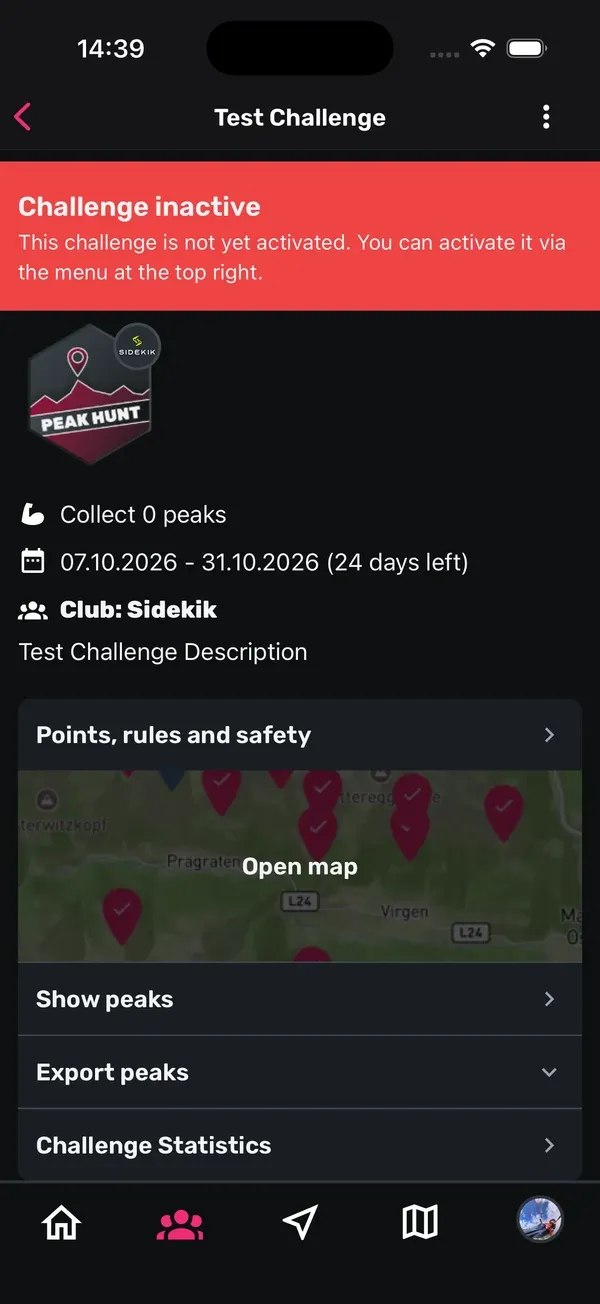
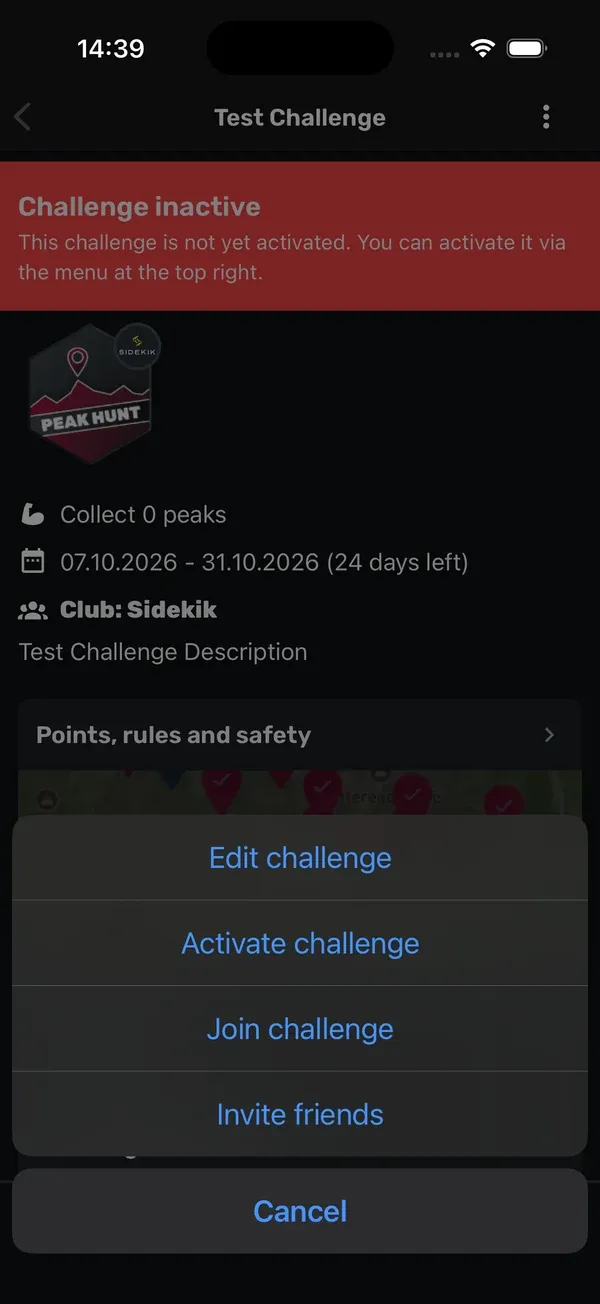
A new challenge starts inactive, with a red Challenge inactive banner. To publish it, tap the three dots on the challenge page, choose Activate challenge and confirm with Activate. Pilots can then see it and join. With Edit challenge in the same menu you can change it later.
Tasks and segments can’t be created in the app. For those, use the web page in the next step.
9. Manage your club on the web
The easiest way to manage your club is the club admin page in your browser: app.sidekik.cloud/manage-my-clubs. Sign in with your Sidekik account, or choose Manage Club in the menu once you’re signed in. Only club admins see this entry.
Everything is on one page, and it’s the only place to create tasks and segments for your club. Peak Hunts can be created here too. The page is in German for now and is titled Meine Clubs verwalten. If you’re an admin of more than one club, pick the club at the top.
- Club details: Bearbeiten (edit) opens the logo, name, description, country, region, city, Instagram and website.
- Challenges: your club’s Peak Hunts. Create a new one, edit or duplicate an existing one, delete it or open its leaderboard. Free clubs can run private challenges for their own members. Silver and Gold clubs can also make a challenge public, so any pilot can join.
- Tasks: Gold clubs only. Create and edit tasks, manage the participants, delete a task or open its leaderboard.
- Segments: Gold clubs only. Create, edit and duplicate segments, recalculate the results, delete a segment or open its leaderboard.
- Mitglieder (members): approve or decline requests under Anfragen, make a member an admin or remove a member from the club. On this page, only the pilot who created the club can take admin rights away again.
What your members see of all this in the app is explained in Club Peak Hunts, tasks and segments.
Tips
- Fill in the profile first. A logo, bio and location make it much easier for your pilots to find the right club.
- Answer requests quickly. New members are keen to see the club page and the leaderboard.
- Share the admin work. Make one or two club officials admins too, so requests don’t pile up when you’re away.
- Watch the yellow warning. Add Member Packages before the limit is reached, so nobody has to wait.
Related guides
Still have questions? Write to us at [email protected].