
Inviting pilots to your club
The fastest way to fill your club in Sidekik is to invite people. Pilots you invite as an admin join right away, without a join request. And when your club starts a new Peak Hunt, one tap tells every member about it.
This guide is mostly for club admins. Members can share the club too: their link sends a join request that an admin confirms.
What the people you invite see is explained in Joining a club with an invite.
1. Open Invite members
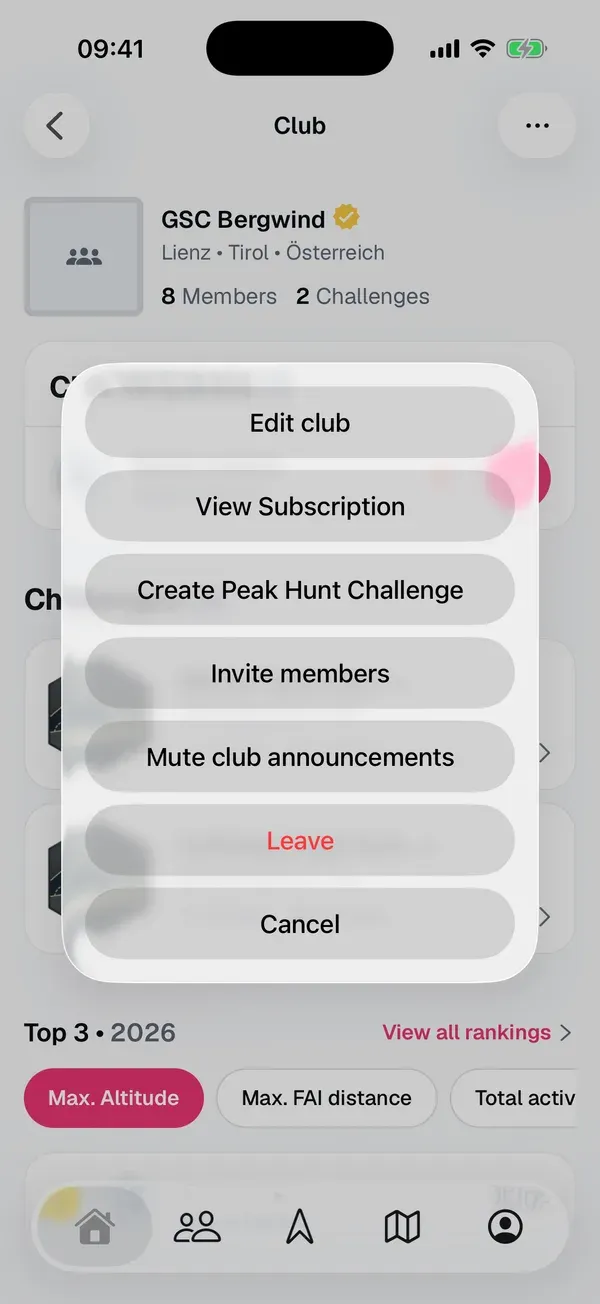
Open your club’s page and tap Invite members next to the members list, or tap the three dots at the top right and choose Invite members.
2. Share the invite link
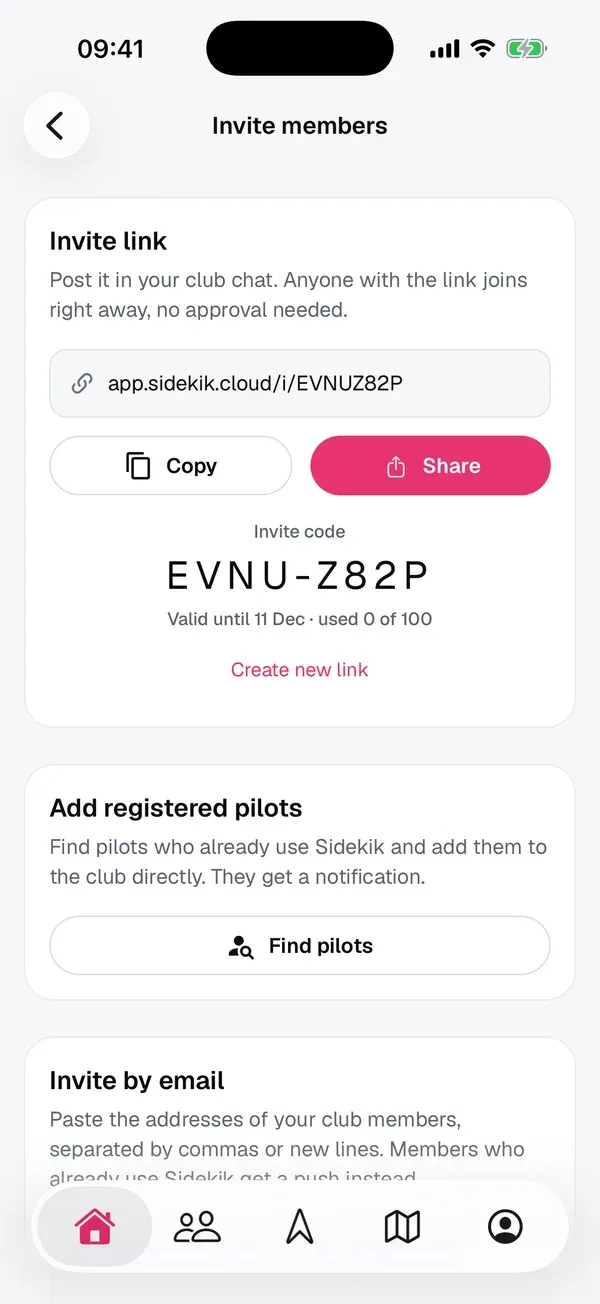
At the top you see your club’s Invite link. Post it in your club chat, on your website or in your newsletter.
- Copy puts the link on the clipboard.
- Share opens the share sheet, with a short message and the link.
- The Invite code below is the same invite as a short code. It’s handy for a club evening or a printed flyer: new pilots type it in the app.
Anyone who opens a link from an admin joins right away, no approval needed. A link is valid for 30 days and can be used up to 100 times. You’ll see both under the code, for example Valid until 11 Dec · used 0 of 100.
Create new link replaces the link. The old link and code stop working, but everyone who already joined stays in the club. Use it when a link ended up somewhere it shouldn’t be.
Good to know: In WhatsApp, Signal, iMessage, Telegram and most other chats, the link shows a preview with your club’s logo and name, who invited them and how many members the club has.

3. Add pilots who already use Sidekik
Many of your club mates probably have Sidekik already. You can add them to the club directly. Only admins can do this.
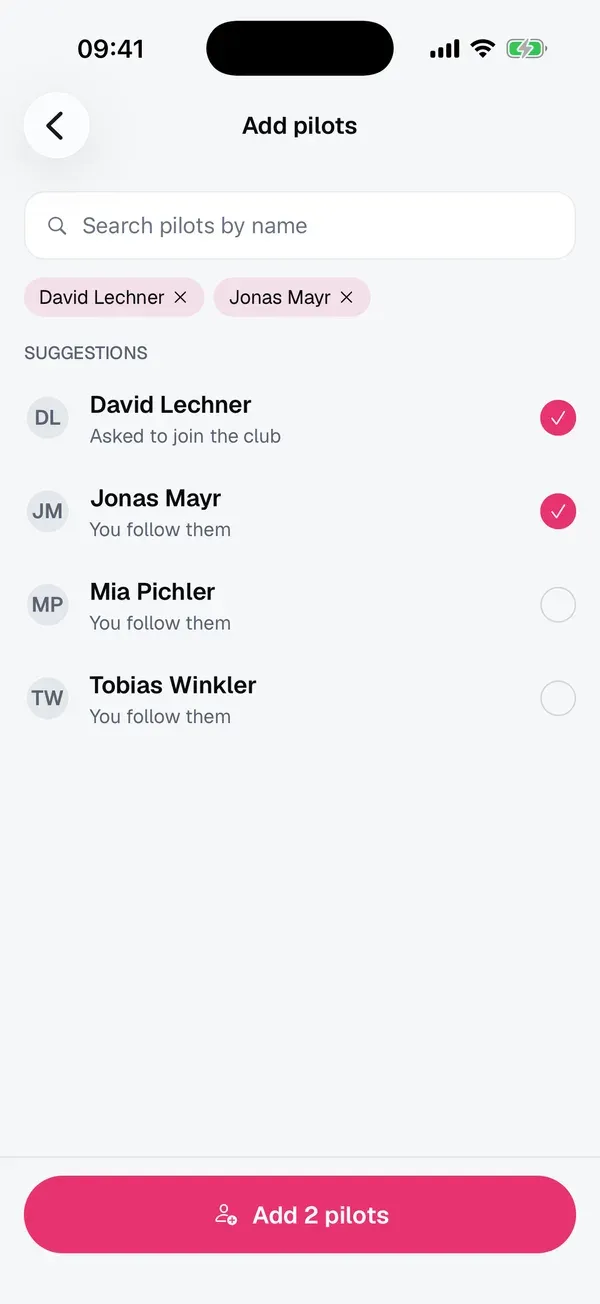
- On Invite members, tap Find pilots in Add registered pilots.
- Before you type, Sidekik suggests pilots: first those who Asked to join the club, then pilots you follow (You follow them).
- Type at least two letters of a first name, last name or username to search all pilots.
- Tap the pilots you want to add. They appear as chips at the top, and the button shows how many you picked.
- Tap Add … pilots and confirm with Add.
The pilots become members right away and get a notification. They can leave the club at any time. You can add up to 50 pilots at once. If your club has no free member slots left, Sidekik tells you how many couldn’t be added.
4. Invite by email
For club members who aren’t on Sidekik yet, use Invite by email. Only admins see this section.
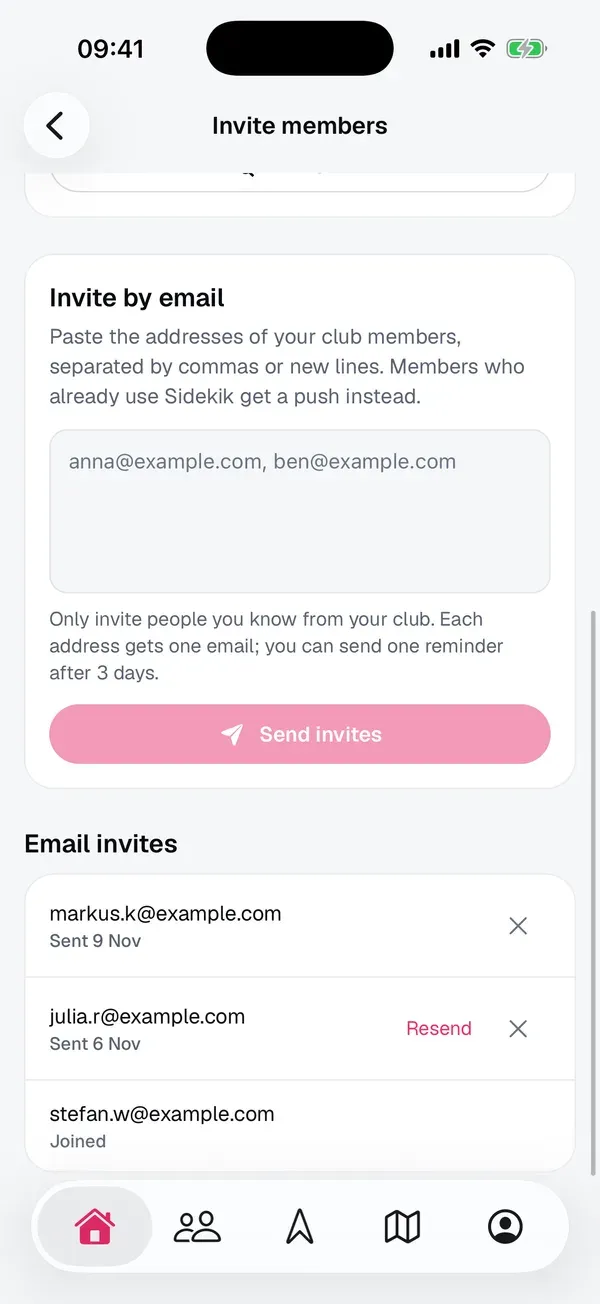
- Paste the addresses, separated by commas or new lines. Up to 50 at a time.
- Tap Send invites.
Each address gets one email with a personal invite. Pilots who already use Sidekik get a push instead of an email. Afterwards you see a short summary, for example how many emails went out and who was already in the club.
Only invite people you know from your club. Sidekik never sends two invites to the same address, and anyone can opt out of invites with the link in the email.
Below, under Email invites, you can follow every invite:
- Sent … shows when the email went out. Joined means the pilot is in.
- Resend appears 3 days after the email, once per address.
- The X withdraws an invite. Its link stops working.
An email invite is valid for 30 days.
5. Tell your club about a new Peak Hunt
When you activate a new Peak Hunt of your club (see Running a club), Sidekik asks whether to tell your members:
- Activate & notify … members activates the Peak Hunt and sends every member a push and an email. They can join with one tap.
- Activate only activates it without telling anyone.
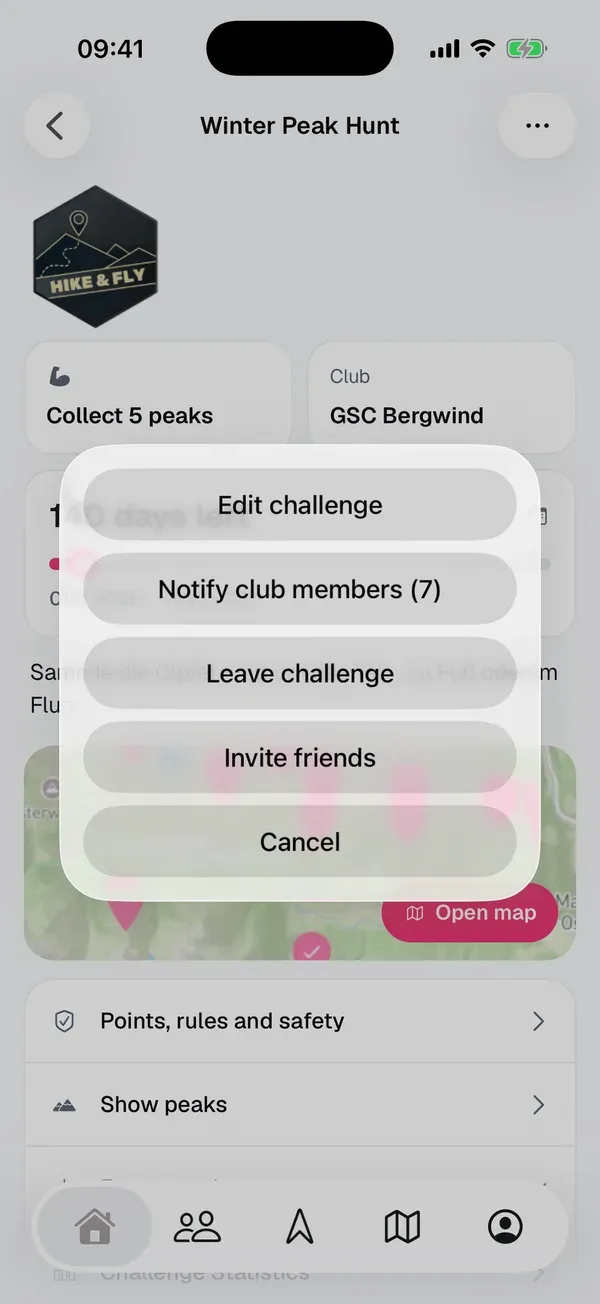
Changed your mind? Open the Peak Hunt, tap the three dots and choose Notify club members (…). Each Peak Hunt can be announced once.
From 3 days after the announcement, the same menu offers Remind members who haven’t joined (…). The reminder only goes to members who aren’t in yet, and it can be sent once.
To keep your members’ inboxes calm, a club can send at most 2 announcements within 24 hours.
6. Invite pilots to a Peak Hunt
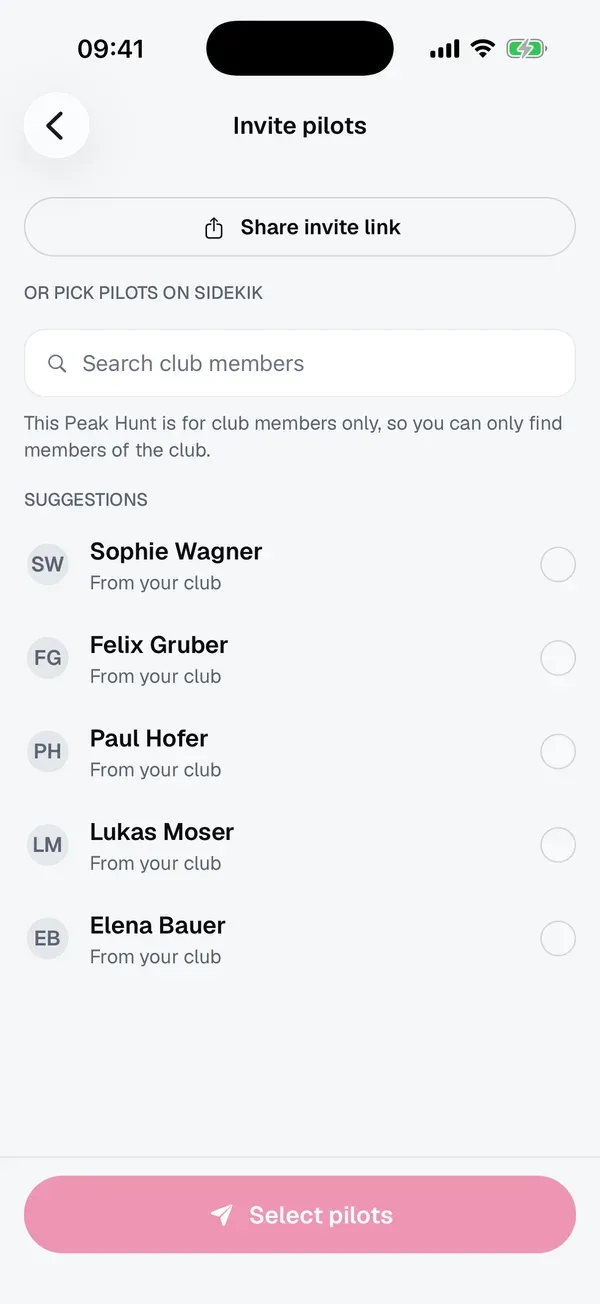
To invite single pilots to a running Peak Hunt, open it and tap Invite friends (below the join button or in the menu). Invite pilots opens:
- Share invite link sends a link to the club and the Peak Hunt at once. Friends who aren’t in the club yet join it on the way.
- Under Or pick pilots on Sidekik, pick pilots and tap Invite … pilots. They get a notification and can join with one tap. Nobody is put into a Peak Hunt without saying yes.
If the Peak Hunt is for club members only (the lock next to its name), you can only find members of the club: the search says Search club members. For public Peak Hunts you can search all pilots. Suggestions come from your club first, then from pilots you follow. Each pilot can be invited to a Peak Hunt once, so pilots who are Already invited are greyed out.
Tips
- Start with the link in your club chat. That’s how most of your members join in a few minutes.
- Then add the ones who are already here. Find pilots shows open join requests and the pilots you follow first.
- Announce the season’s first Peak Hunt. Activate & notify brings the whole club in at once, and the reminder three days later gets the rest.
- Keep an eye on your member slots. Invites stop working when the club is full. See Running a club.
Related guides
Still have questions? Write to us at [email protected].