
Messages
With Messages you can talk to other pilots right in Sidekik: plan tomorrow’s XC day in a group, ask someone how they got across the valley, or send a friend the flight you just landed.
This guide shows how to start a chat, what you can do in it, how to send a flight as a message and how to decide who can write to you. Messages are part of Sidekik 5.3, so update the app if you don’t see the icon yet.
1. Open your inbox
On Home, tap the speech bubbles at the top right, next to the bell. A badge on the icon means you have unread messages or requests.
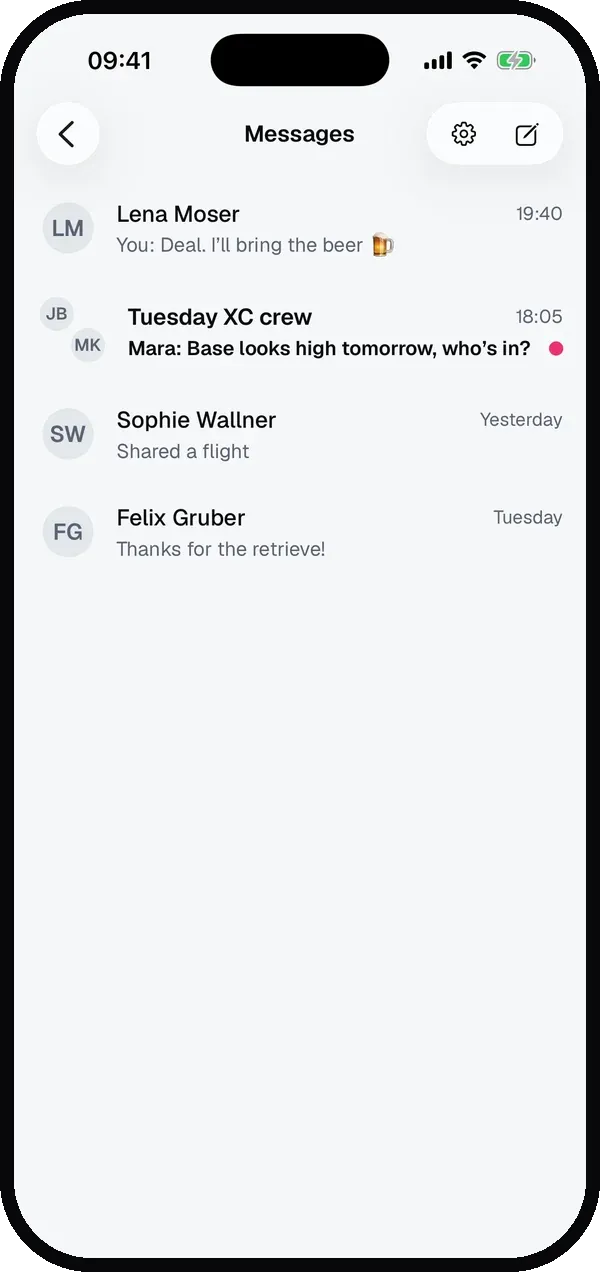
The inbox lists your chats with the newest first. Unread chats are in bold with a dot.
2. Start a chat
- From the inbox: tap the pencil at the top right, pick one pilot for a 1:1 chat or several for a group.
- From a profile: tap Message next to Follow.
- From a flight: see step 5.
In a group, open Group info from the … menu to give it a name and a photo or add more pilots.
3. Chat
Type at the bottom and tap the arrow to send. In every chat you can:
- send photos: tap the camera, several at once if you like,
- react: hold a message and pick an emoji,
- see what’s happening: when someone is typing, and under your last message when it was Seen,
- get notified: a push notification comes in for every new message.
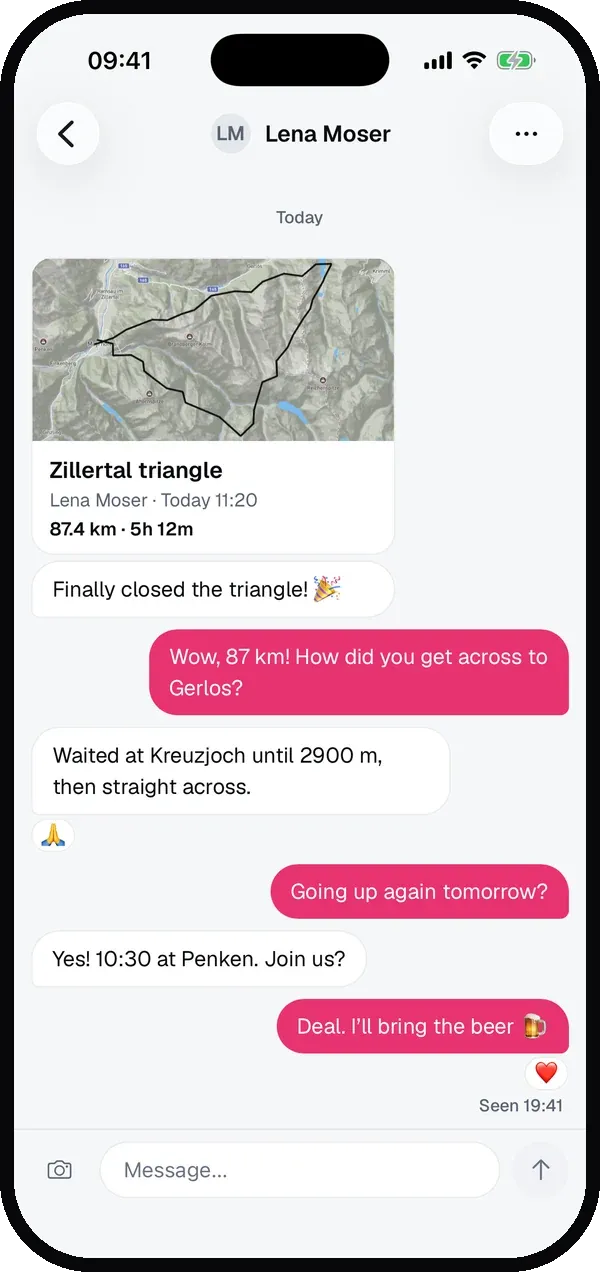
Hold one of your own messages to delete it for everyone, or someone else’s to report it. The … at the top of a chat lets you mute it, block or report the pilot, or delete the conversation from your inbox. In the inbox, hold a chat to mute or delete it.
4. Send a flight as a message
The paper plane on a flight, in the feed or on the flight page, sends it as a message.
- Tap the paper plane.
- The flight’s pilot comes first, marked Pilot, so you can reply to them about that flight right away. Below are your recent chats and other pilots.
- Pick one or more, add a note if you like, and tap Send.
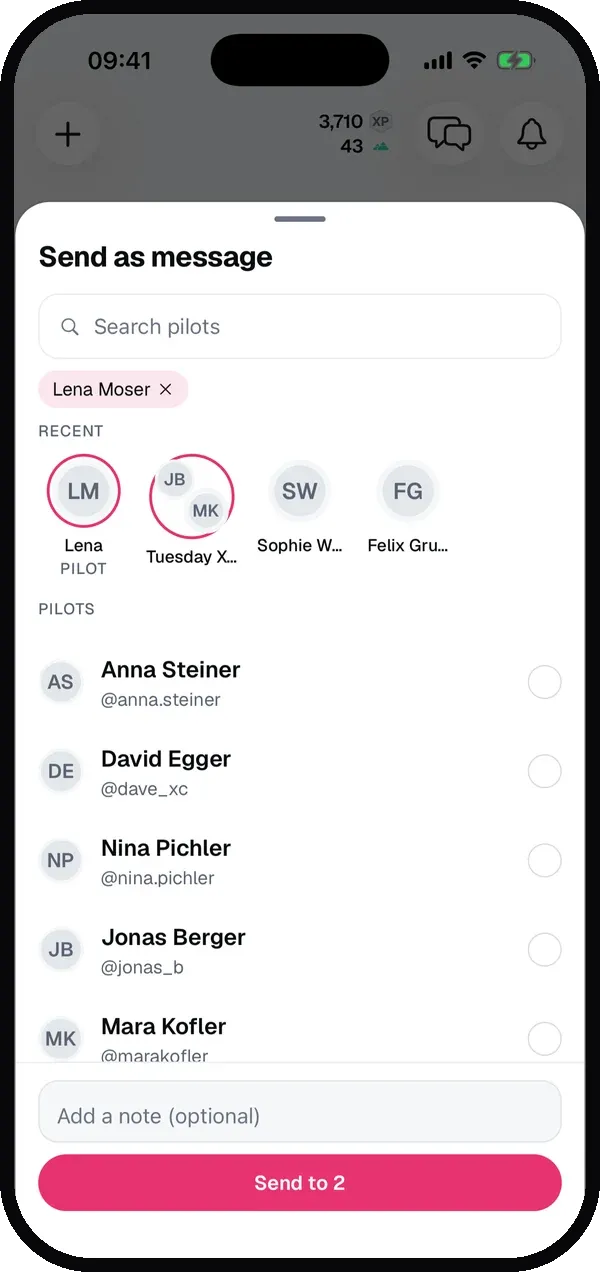
In the chat the flight shows as a card with the map. A tap opens it.
Looking for the old share button? Sharing a picture or a link outside Sidekik is now the separate share icon on the right of the same row.
5. Message the pilots you flew with
On the flight page, Flown with and Nearby show a message button next to each pilot, if you were part of it. On your own flight from a group, Message group starts one chat with everyone who was there.
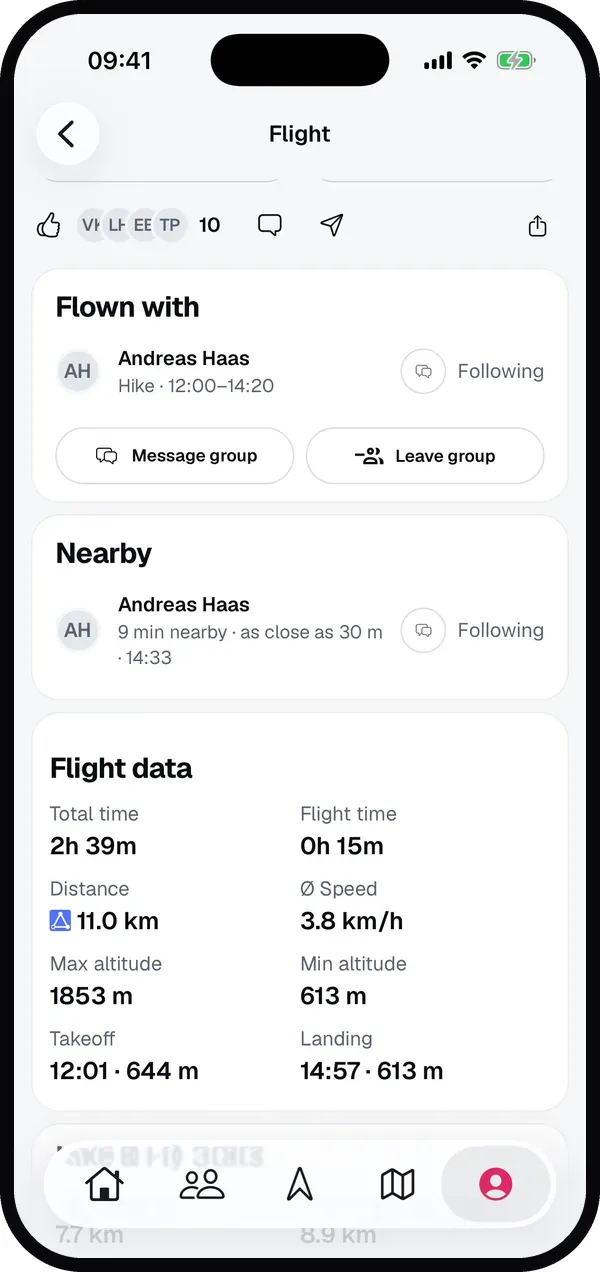
How Flown with and Nearby work is explained in Group activities and Nearby.
6. Decide who can message you
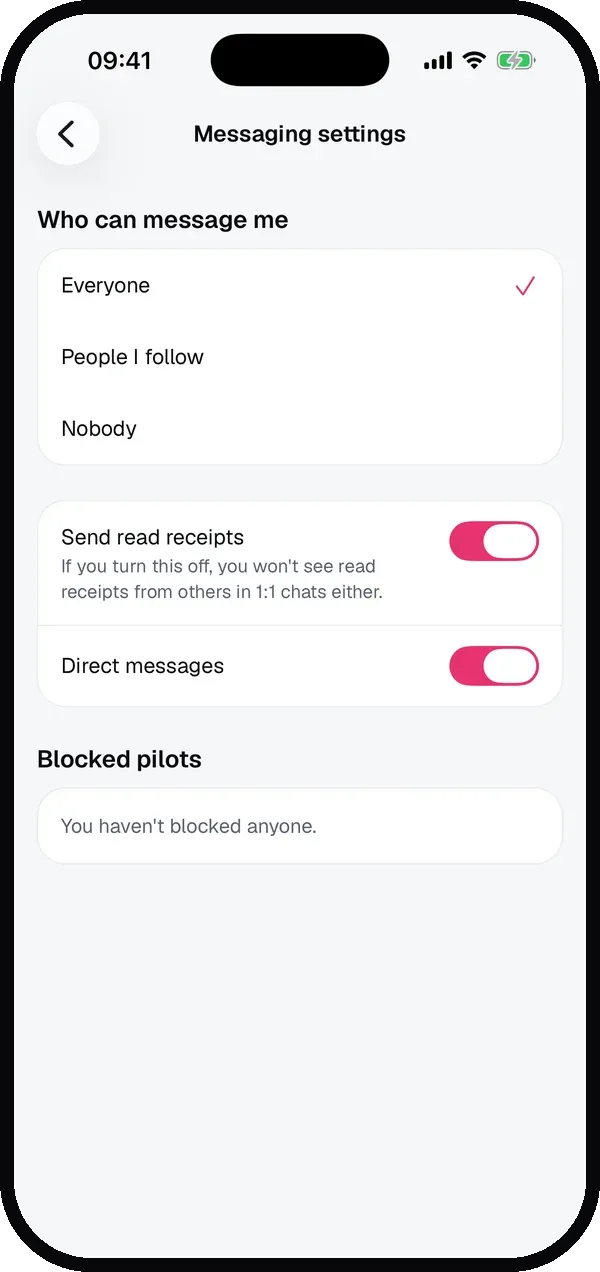
In the inbox, tap the gear for the Messaging settings:
- Who can message me: Everyone, People I follow or Nobody.
- Send read receipts: switch it off if you’d rather not show when you’ve read something. In 1:1 chats you then won’t see read receipts from others either.
- Direct messages: push notifications for new messages, on or off.
- Blocked pilots: everyone you’ve blocked, with an Unblock button.
Message requests
When someone you don’t follow writes to you, it arrives as a message request: a row at the top of the inbox shows how many are waiting. You can read a request, but the sender won’t see whether you have until you tap Accept. You can also Delete it or Block the pilot.
Tips
- Flew with someone new? Open your flight, tap the message button next to them under Nearby and say hi.
- Planning a flying day? Start a group with your crew and agree on launch and time there.
- Too many notifications? Mute a busy group from its … menu instead of switching off all messages.
Related guides
Still have questions? Write to us at [email protected].