
Photos and videos on your flights
A photo shows where you were. A video shows what it was like: the launch run, the first thermal, the glide over the ridge. You can add both to every flight in Sidekik, and your friends see them in the feed.
This guide shows how to add photos and videos, trim a long clip, sort them and choose the cover, and how they look to others.
1. Add photos and videos
- Open your flight and tap … → Edit flight details.
- Scroll to Photos & videos and tap Photo or video.
- Pick one or more from your library.
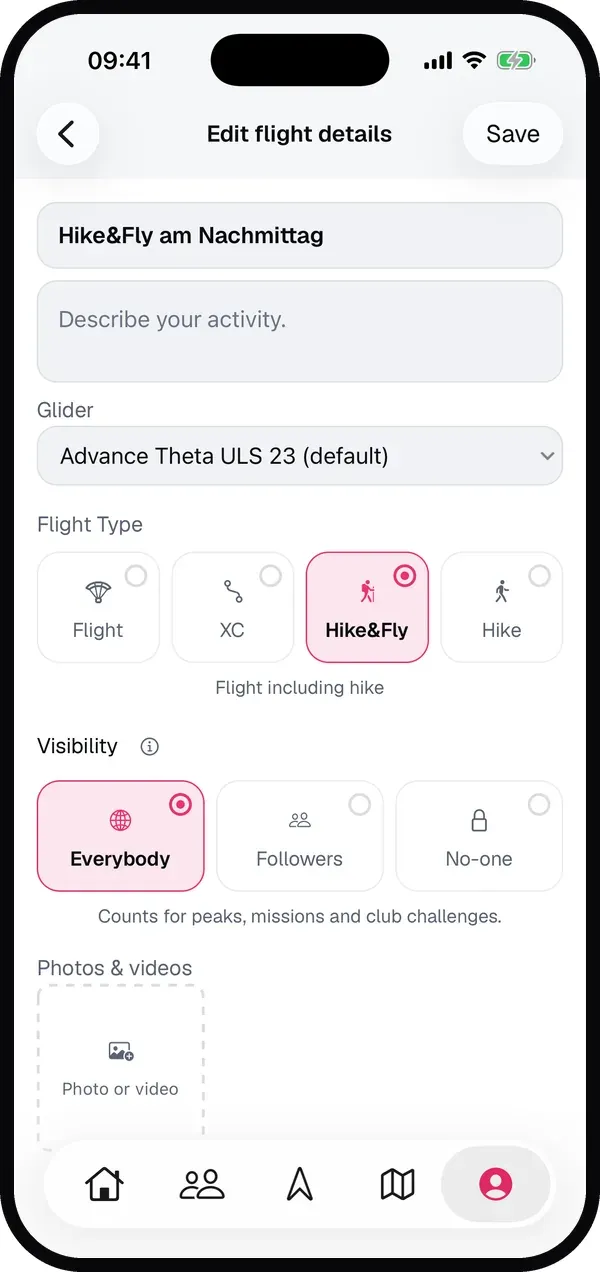
A flight can have up to ten photos and videos, of which up to three videos of up to 30 seconds each.
Sidekik makes photos and videos smaller on your phone before they go up, so uploading doesn’t eat your data plan. A video’s tile shows a bar while it’s being prepared and uploaded, and its length once it’s done.
Good to know: Pilots see your videos in Sidekik 5.3 or later. In older versions they still see your photos and the map.
2. Longer than 30 seconds?
No need to cut it in another app first. If a video is longer, Sidekik opens a trim screen: drag the window to the 30 seconds you want to keep and tap Use.
Pick several long videos at once and the trim screens come one after another. Close one and only that video is left out.
3. Sort them and choose the cover
Hold a photo or video and drag it to a new place. The first one is the Cover.
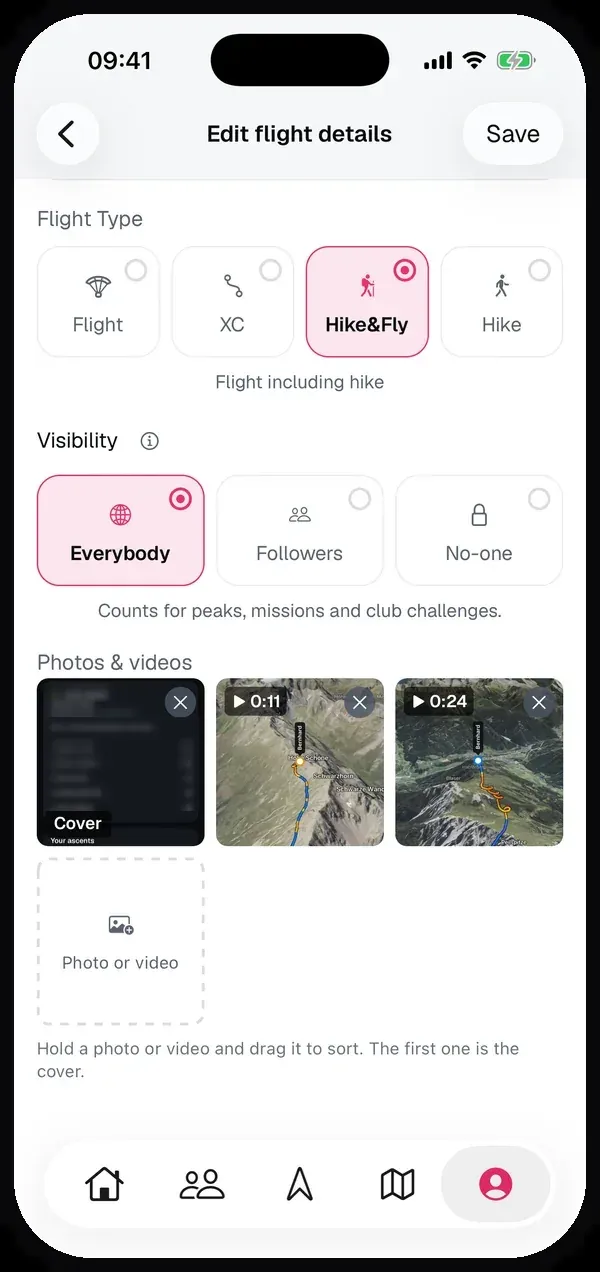
To remove one, tap the × in its corner.
4. Look at them full screen
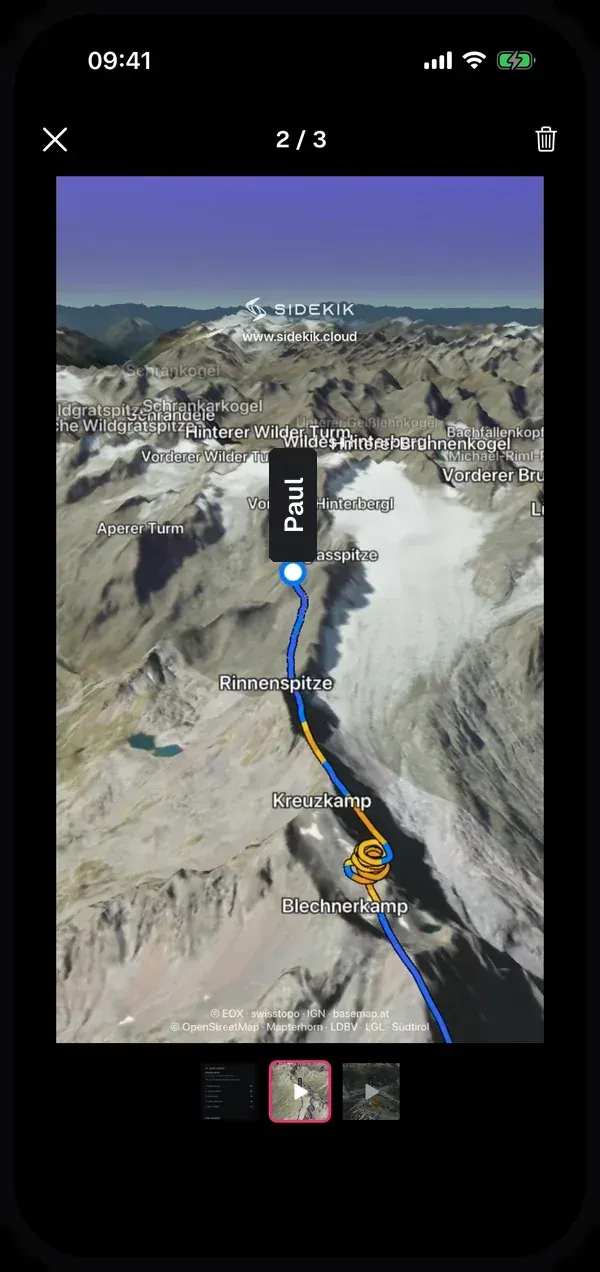
Tap a photo or video, on the edit page or on the flight page, to open it full screen. Videos play with sound.
- Swipe to go to the next one.
- Pinch to zoom into a photo.
- Tap a thumbnail at the bottom to jump straight to it.
- On the edit page, the trash icon removes it from the flight.
5. In the feed
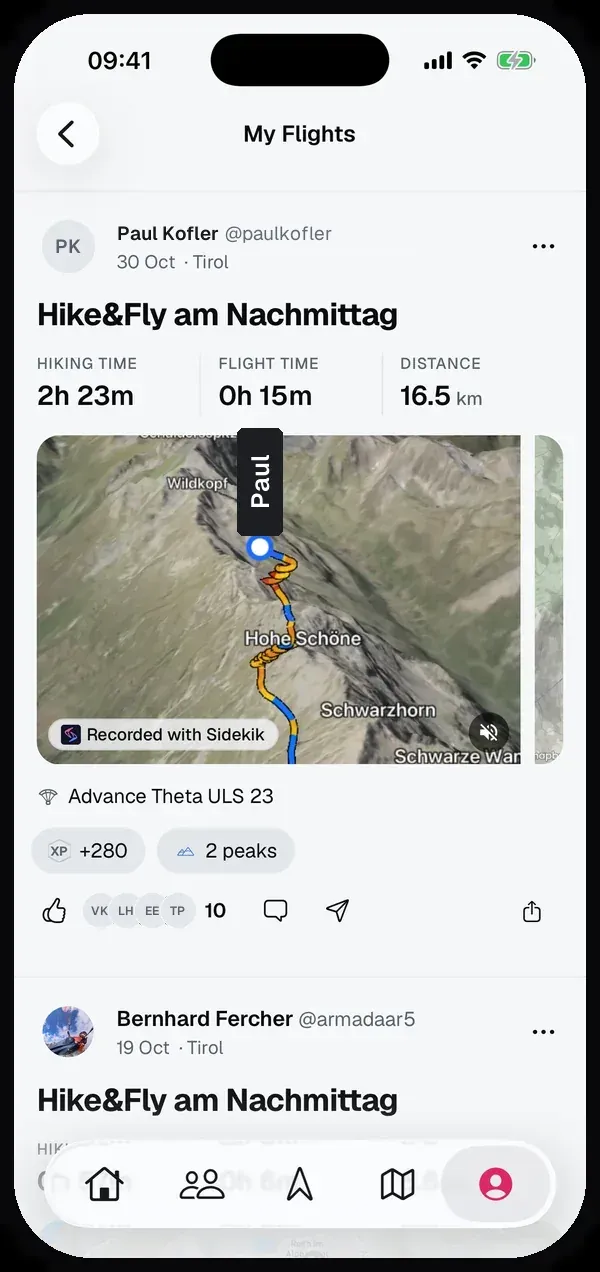
Photos and videos show next to the map of the flight. Swipe the card sideways to see them all.
If a flight has a video, it comes first, ahead of the map. It plays muted while it’s the card you’re looking at, and pauses when you scroll on.
- Tap the speaker in the corner to turn the sound on or off. It applies to every video in the feed.
- Tap the video to open the flight, then tap it again to watch it full screen.
Who sees your photos and videos is up to the flight’s visibility. See Who sees your flights.
Tips
- Short clips work best. Ten or fifteen seconds of the best moment beat a long take of the whole glide.
- Lead with a video. In the feed a video comes before the map, so it’s the first thing your friends see.
- Add them later. You can add photos and videos to flights you uploaded long ago, too.
Related guides
Still have questions? Write to us at [email protected].