
Joining a club with an invite
Your club sent you an invite? Then joining takes a tap. If the invite comes from a club admin, you’re a member right away, without a join request.
1. Open the invite
An invite reaches you in one of these ways:
- A link in a chat, on a website or in a newsletter. It looks like
app.sidekik.cloud/i/…and shows a preview with the club’s logo. - An email from Sidekik with the button to join.
- A code of eight letters and numbers, for example on a flyer at the club evening.
- A notification in the app, if you already use Sidekik.
Open the link on your phone. If Sidekik is installed, the app opens straight to the invite. If not, you’ll see a page with the invite and the links to the App Store and Google Play. On Android, the invite is waiting for you in the app after installing. On iPhone, open the link again once the app is installed, or type the code.
Got a code? On the welcome screen, tap Got an invite code?, type it in and tap Continue.
2. Join the club
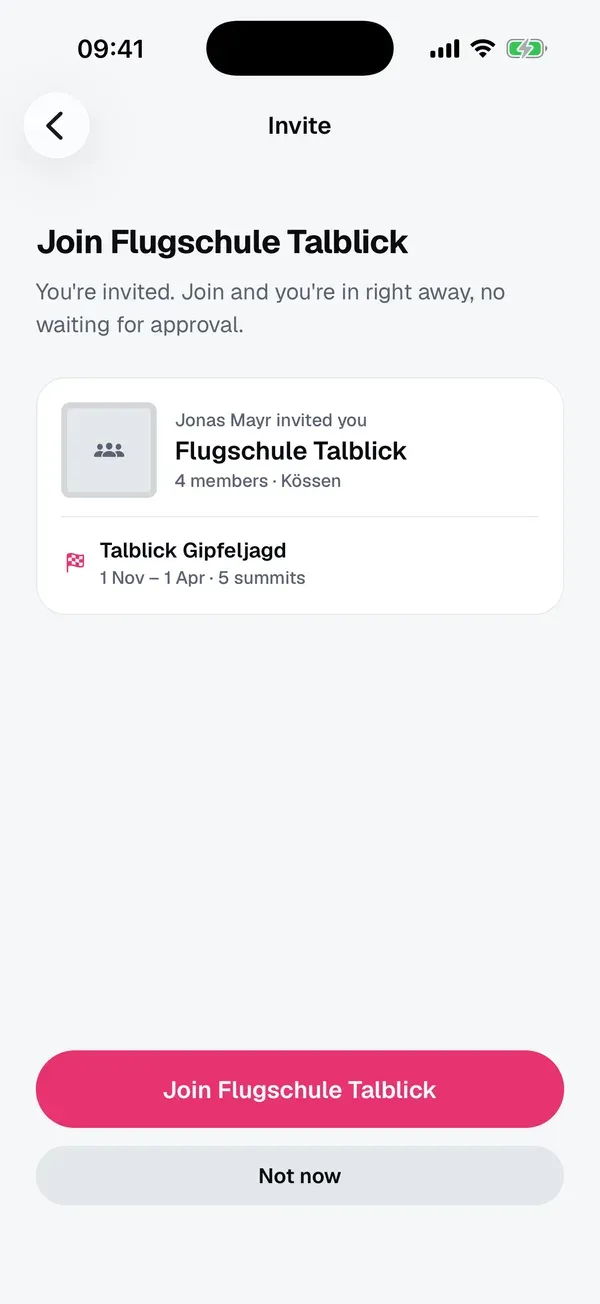
The invite shows the club, how many members it has, who invited you and, if there’s one, the club’s Peak Hunt.
- Join … makes you a member. If the invite comes from an admin, you’re in right away: You’re invited. Join and you’re in right away, no waiting for approval.
- If a member invited you, the button says Request to join. A club admin then confirms your request.
- Not now closes the invite. You can open the link again later.
Not on Sidekik yet? Tap Create account and join. When you sign up, your club is already picked in the Your club step. If you’d rather pick a different one, tap Choose a different club. Already have an account? Tap I already have an account and log in.
3. Join your club’s Peak Hunts
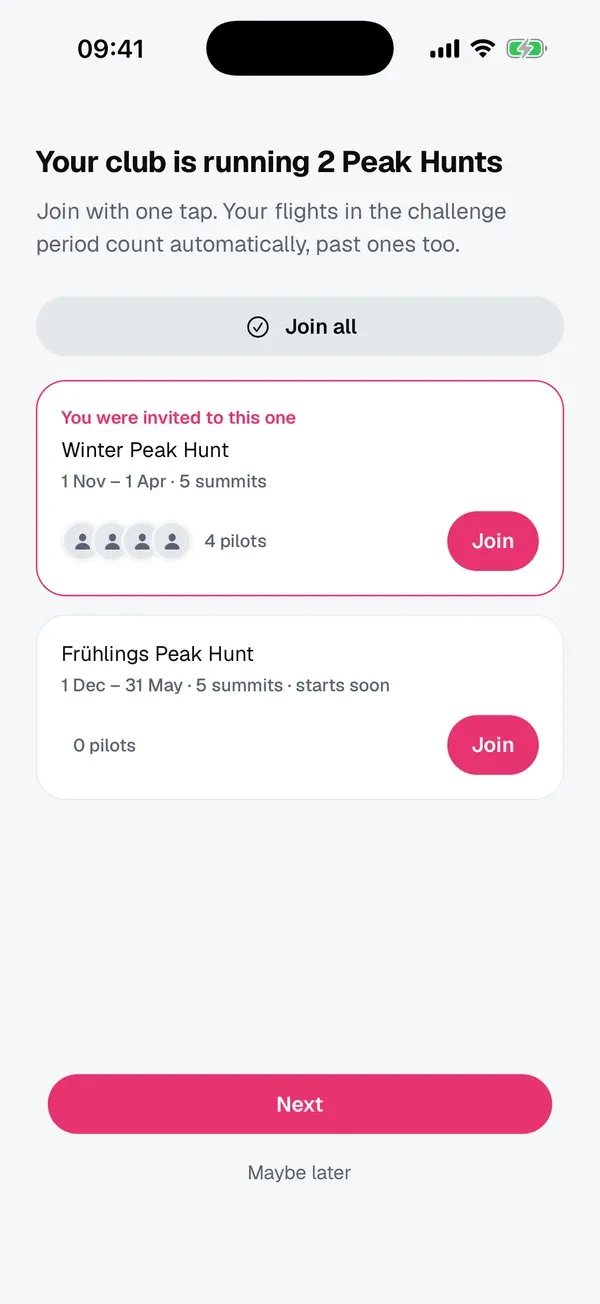
Right after you join, Sidekik shows the Peak Hunts your club is running right now, for example Your club is running 2 Peak Hunts.
- Join next to a Peak Hunt joins just that one. Join all joins every one of them.
- The Peak Hunt you were invited to is marked You were invited to this one.
- starts soon means it hasn’t started yet. You can join already.
Your flights in the challenge period count automatically, past ones too. Maybe later skips this step. You’ll find all Peak Hunts later on your club’s page.
4. When an admin adds you or invites you to a Peak Hunt
If you already use Sidekik, a club admin can also add you to the club directly. You’ll get a notification such as “Anna Huber added you to GSC Bergwind”, and the club shows up under My clubs. Don’t want to be in the club? Open the club page, tap the three dots and choose Leave club.
Club mates can also invite you to a Peak Hunt. You get a notification and join with one tap on the Peak Hunt. Nobody puts you into a Peak Hunt without your yes.
5. Club announcements
When your club starts a new Peak Hunt, the admins can tell all members with a push and an email. Two places let you decide how much you get:
- For one club: on the club page, tap the three dots and choose Mute club announcements. Tap Unmute club announcements to turn them back on.
- For all clubs: in Settings → Notifications, under Club announcements, switch Push notifications and Email on or off.
Something didn’t work?
- Invite not valid: the invite has expired or was withdrawn. Ask your club admin for a new one.
- You’re already in: you’re already a member of this club. Tap Open club.
- All member slots of this club are taken: the club is full for now. Let your admin know.
Related guides
Still have questions? Write to us at [email protected].